Best Way to Clean a Laptop in 2025 is a common issue that many new users face And we will teach you about how to clean a laptop fan. If you clean your laptop once a year, it will never create any issues like the fan stopping working, the keyboard not working, or some other issues. Cleaning the laptop can resolve numerous issues. It is a very frustrating situation when you use your PC in a meeting and your laptop stops working and works slowly. The part where air is supposed to come out gets closed, and heat stays trapped inside. That heat damages the laptop.
But if you open the laptop and clean it once a year — or get it cleaned if you don’t know how — this issue won’t come up. The laptop will keep running fine and work at its proper performance level.
In this guide, I’ll explain exactly How to Clean a Laptop Fan and any other part of your laptop, step by step. Every laptop opens a little differently, so you can check your specific model on YouTube. But the cleaning process is almost the same. This blog is going to be very informative. And we provide a full guide on best way to clean a laptop in 2025 at home without breaking and damaging.
Table of Contents
Must-Have Tools For How to Clean a Laptop Fan
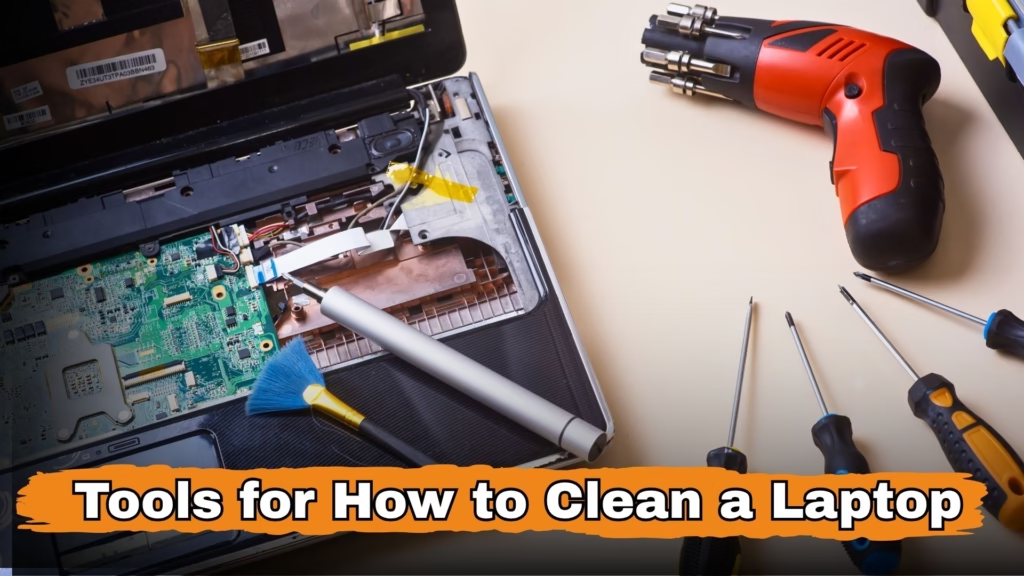
The tools needed for cleaning your laptop are as follows:
- Screwdriver Set
Laptops use different types of screws. You’ll need different screwdrivers to open them. - Anti-Static Wrist Strap
This keeps you safe from electric shocks while working on electronic parts. - Brush
Used to clean the fan and other areas where dust gathers. - Compressed Air Can
Useful for blowing out dust from tight spaces where your hands or brush can’t reach. - Soft Microfiber Cloth
For cleaning the screen and body without leaving scratches. - Plastic Pry Tool
Helps to separate the laptop body safely after unscrewing. - Special ESD Vacuum Cleaner
Removes dust collected inside parts like the motherboard. - Tweezers
Helps you pick up tiny screws or parts that are hard to handle by hand. - Magnetic Tray
Keep screws and small parts in one place so they don’t get lost. - LED Light
Helps you see small parts clearly when cleaning inside the laptop.
Safety Tips To Avoid Breaking Parts
- Don’t touch any point of your laptop if you don’t know what it is.
- Don’t apply too much pressure on any part.
- Don’t press on the screen while cleaning.
- Remove the battery first before starting the cleaning process.
How to Clean Your Laptop Step by Step
1. Open the Laptop

Place your laptop on a table and use a best quality screwdriver to remove the all screws from your laptop. And in last use a plastic tool for open the body.
2. How to Clean a Laptop Fan
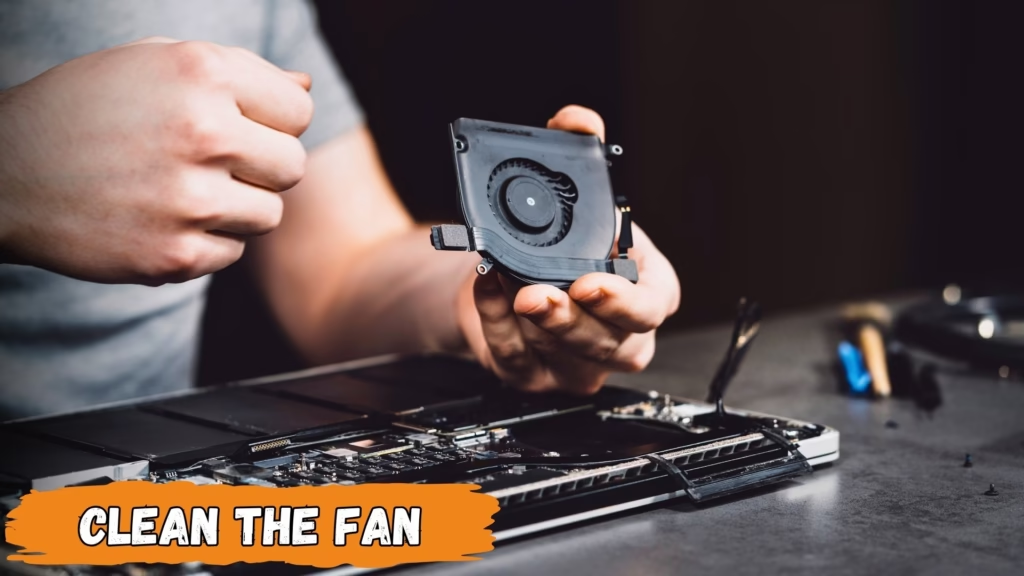
The fan keeps your laptop cool, so it’s important. Gently remove the fan and check if there’s dust inside. If there is, blow it out with the air can. Use the vacuum for remaining dust. This helps your laptop run smoother.
3. Clean the RAM
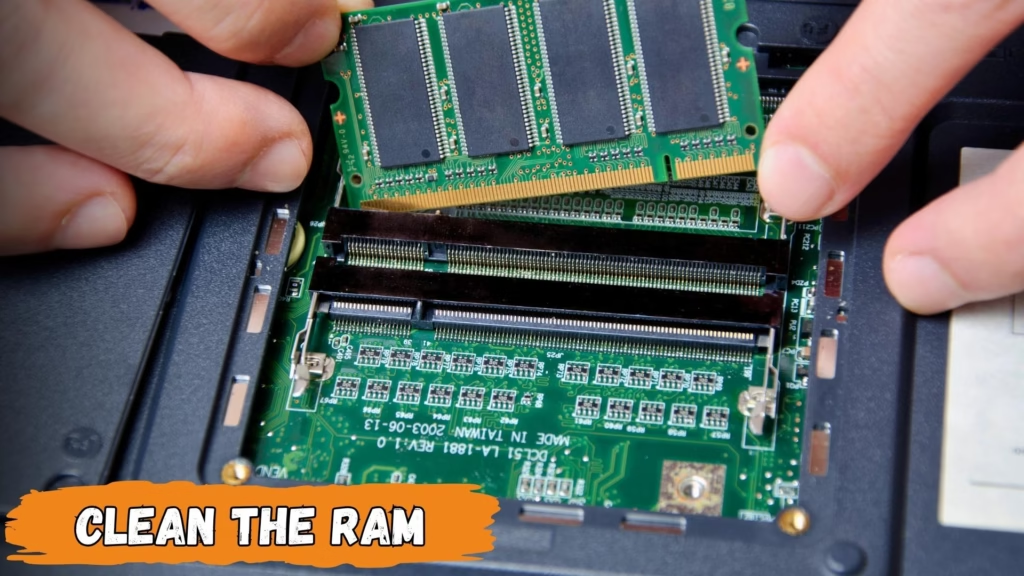
If you haven’t cleaned your laptop in a long time, dust and carbon can build up where the RAM connects to the motherboard. This weakens the connection and slows the laptop down. Remove the RAM, clean the gold contacts with a brush, and clean the slot too. Then place it back properly.
4. Clean the Motherboard
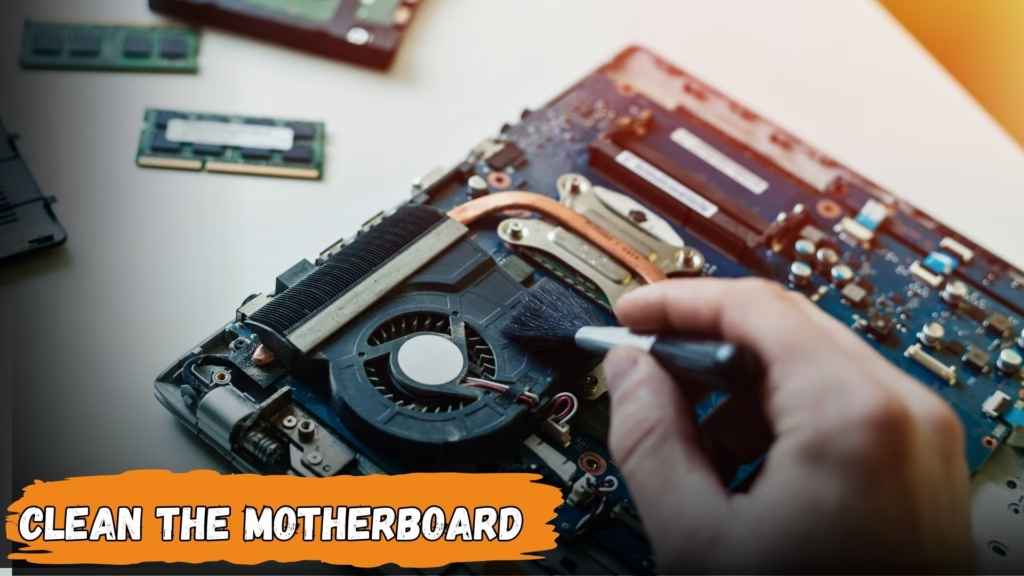
After removing the battery, fan, RAM, and hard drive, use a brush to clean the motherboard. Blow remaining dust with the air can. If dust is still stuck, use the vacuum. Then put everything back where it was.
5. Clean the TouchPad
For cleaning the touchPad of your laptop keep in mind do not use the water directly because it may damage the touchpad strips and points. Use only soft clothes for cleaning.
Use Your Laptop in a Clean Place
Try to avoid using your laptop in dusty places. Dust goes inside the laptop and settles on parts, which makes it slow and reduces performance. Always use it in a clean area. Don’t open your laptop in dusty surroundings.
Best Way to Clean a Laptop by Software
Delete Unwanted Files
Turn on your laptop and delete all files and folders you don’t need. Useless data puts extra load on your system and slows it down.
Scan with Antivirus

Install any good free or paid antivirus app. Run a full scan. If there’s any virus or error, the scan will fix it. Because some time when we download any file that is not officialy like cracked softwares are dangerous for our system. So we need to install a powerfull anti-virus software.
Uninstall Extra Apps
For Uninstalling the application and apps from your laptop you need to go Control Panel and the click on the Uninstall a app. This method remove the apps from your laptop.
Delete Temporary Files
Press Ctrl + R, and type temp, and press Enter. A folder will open with temporary files. Select all and delete them. These files run in the background and slow down your laptop. And also delete the junk and waste files from your pc beacuse these files are cover the space in your disk with out any need.
Important Note
Never install apps from unknown publishers. These apps can ask for access to your system and may contain viruses. If you install something unsafe, it can damage your laptop or data.
Keep Your Windows Updated

Keeping your Windows system updated is important. Updates include new security features and fixes that help protect your PC from viruses or damage.
Conclusion
Best way to clean a laptop and how to clean a laptop fan in 2025 is not a difficult job. It only requires a bit of care and basic understanding. If you clean your laptop regularly and use it ina clean place, you can’t face any issue. For healthy and smooth working of your laptop, you need to use your laptop in an airy environment. And clean your laptop at atleast once a year for its fast working and to stay safe from any problems.
Above, I’ve explained the full process step by step on how to clean a laptop. If you can’t do it at home then go to the market and find a good and authentic technician and hand over the laptop for service. After service your laptop runs for a long time without making any error and is able to run the heavy tasks smoothly without any problem.
FAQs: Best way to Clean a Laptop in 2025
Q1: When should I clean my laptop for its smooth working?
A: Clean your laptop once a year is good for its smooth working. Do a full internal cleaning once a year like fan cleaning and ram, especially if you use your laptop in dusty places.
Q2: How do I clean the screen?
A: Turn off the laptop and remove the battery. Dampen a microfiber cloth with a bit of water or 70–75% isopropyl alcohol. Wipe the screen gently in circles. Don’t spray anything directly.
Q3: How do I clean the keyboard and small gaps?
A: Tilt the keyboard and use compressed air to blow out dust. Wipe keys with a cloth or alcohol. Use cotton swabs for the gaps.
Q4: When and how should I clean the inside?
A: If you have experience, open the laptop once a year and clean the fan, motherboard, and RAM. Always remove the battery first. Use a brush, air can, or vacuum.
Q5: Is it safe to use alcohol?
A: Yes. Use 70–90% isopropyl alcohol lightly on a cloth. It dries fast and won’t damage parts. Make sure everything is off before using it.
Q6: How to Clean a Laptop with water from outside?
A: Yes you can clean your laptop with water from outside but remember do not clean your LCD with water directly because it damages your laptop screen directly.