Best Way to Clean a Laptop in 2026 is a common issue that many new users face. Dust and dirt build up around a laptop cooling vents and fan over time. This buildup can restirict airflow, increase heat and make the fan work harder. In this guide, you will learn how to clean a laptop fan and remove dust from vents and clean the outside of you laptop safely. I will also explain a few simple software maintenance steps that can help keep your laptop organized. The cleaning process depends on your laptop model.
You do not always need to open a laptop to remove dust. Cleaning the external vents may be enough for routine maintenance. If dustt is trapped inside the fan, your laptop may need internal cleaning by a qualified technician. Regular cleaning can help maintain airflow, but it cannot prevent every laptop problem.
Table of Contents
Tools Needed to Clean a Laptop Fan
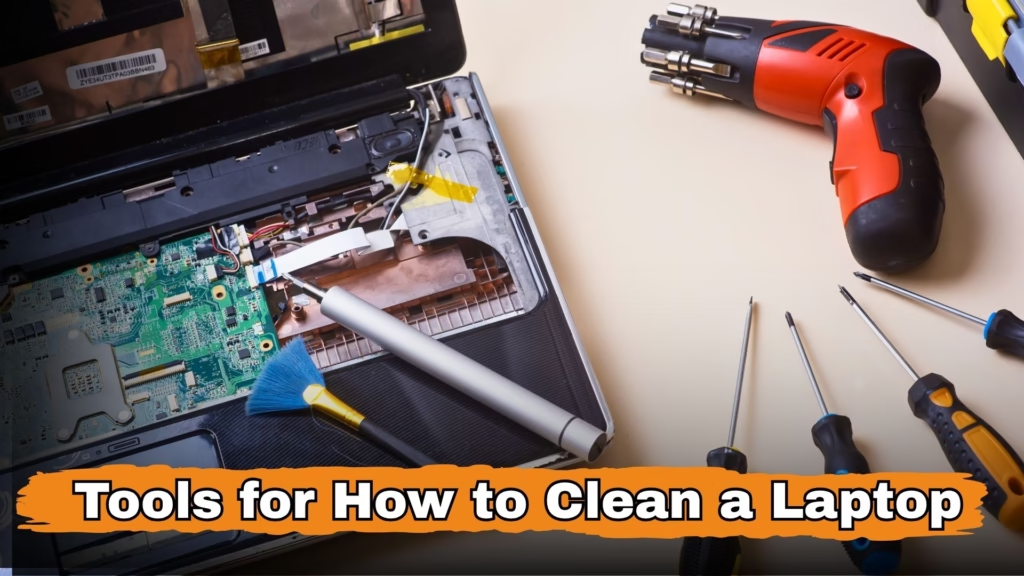
The tools needed for How to Clean a Laptop Fan:
- Screwdriver Set
Laptops use different types of screws. You’ll need different screwdrivers to open them. - Anti-Static Wrist Strap
This keeps you safe from electric shocks while working on electronic parts. - Brush
Used to clean the fan and other areas where dust gathers. - Compressed Air Can
Useful for blowing out dust from tight spaces where your hands or brush can’t reach. - Soft Microfiber Cloth
For cleaning the screen and body without leaving scratches. - Plastic Pry Tool
Helps to separate the laptop body safely after unscrewing. - Special ESD Vacuum Cleaner
Removes dust collected inside parts like the motherboard. - Tweezers
Helps you pick up tiny screws or parts that are hard to handle by hand. - Magnetic Tray
Keep screws and small parts in one place so they don’t get lost. - LED Light
Helps you see small parts clearly when cleaning inside the laptop.
Note: You do not need to open every laptop for routine cleaning. A microfiber cloth and suitable compressed air may be enough for external maintenance. Internal cleaning requires extra care and model specific instructions.
Safety Tips To Avoid Breaking Parts
- Don’t touch any point of your laptop if you don’t know what it is.
- Don’t apply too much pressure on any part.
- Don’t press on the screen while cleaning.
- Remove the battery first before starting the cleaning process.
- Shut down the laptop and disconnect the charger and all external devices.
- If the battery is removeable, remove it according to the manufacturer’s instructions. For a built-in battery, follow the model service guide before opeining the laptop.
- Work on a clean, dry and well lit surface.
- Avoid touching the motherboard, connecters and other internal components.
- Never spray liquid directly onto the laptop.
- Use compressed air carefully and avoid forcing the fan to spin at high speed.
- If you are unsure how to open your laptop, ask a qualified technician to clean it.
How to Clean Your Laptop Step by Step
1. Open the Laptop
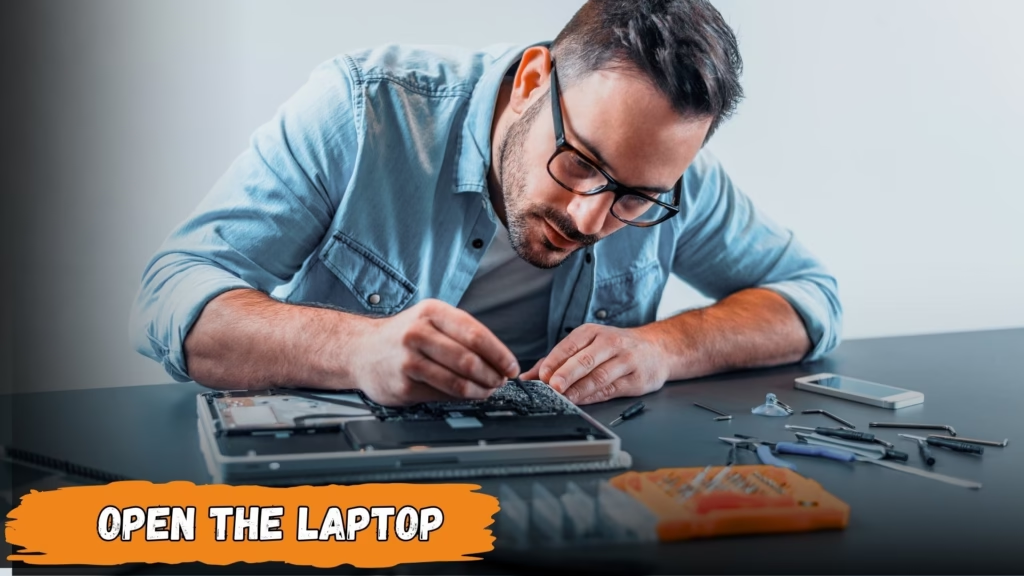
Place your laptop on a clean fla surface and disconnect the charger. If internal cleanign is necessary, use a correct and best quality screwdriver to remove the all screws from your laptop. And in last use a plastic tool for open the body.
2. How to Clean a Laptop Fan
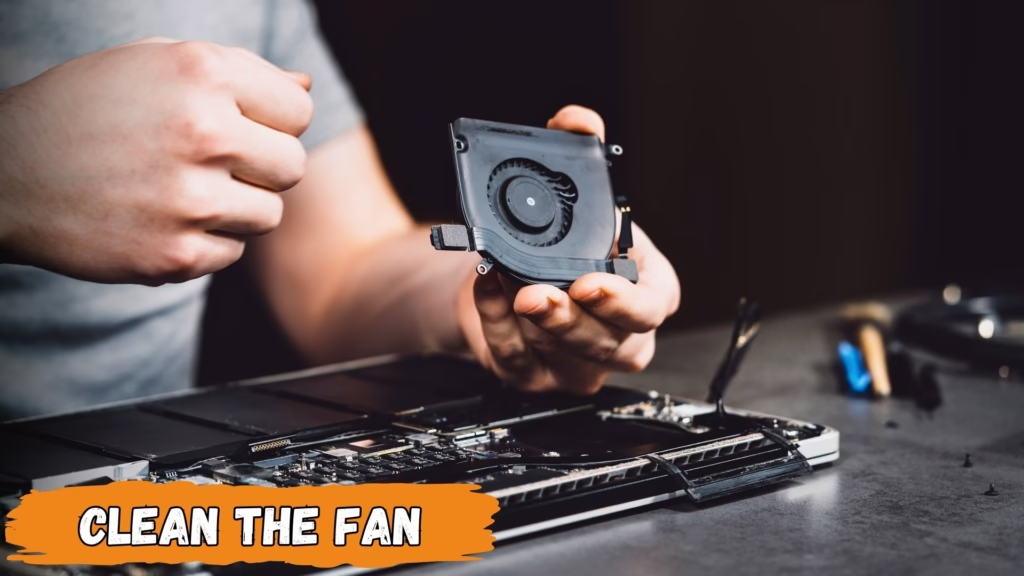
The cooling fan helps move hot air out of your laptop. First, shut down the laptop and disconnect the charger For routine cleaning use a can of compressed air according to its instructions to remove dust from the cooling vents. If you need to open the laptop, do not remove the fan unless your model service guide explains how to do it safely. For Heavy internal dust buildup , professional cleaning is a safer option.
3. Clean the RAM
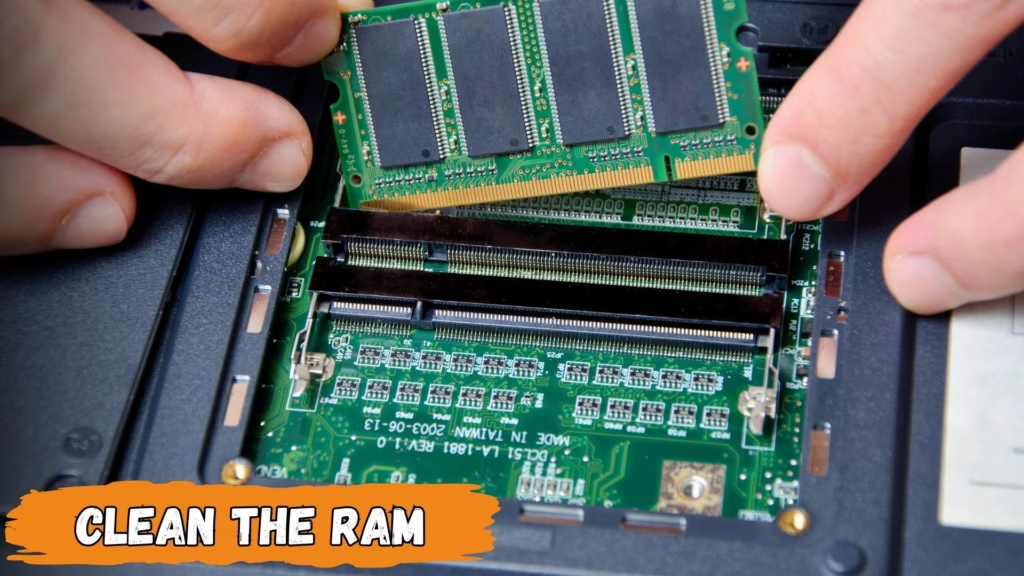
If you haven’t cleaned your laptop in a long time, dust and carbon can build up where the RAM connects to the motherboard. This weakens the connection and slows the laptop down. Remove the RAM, clean the gold contacts with a brush, and clean the slot too. Then place it back properly.
4. Clean the Motherboard
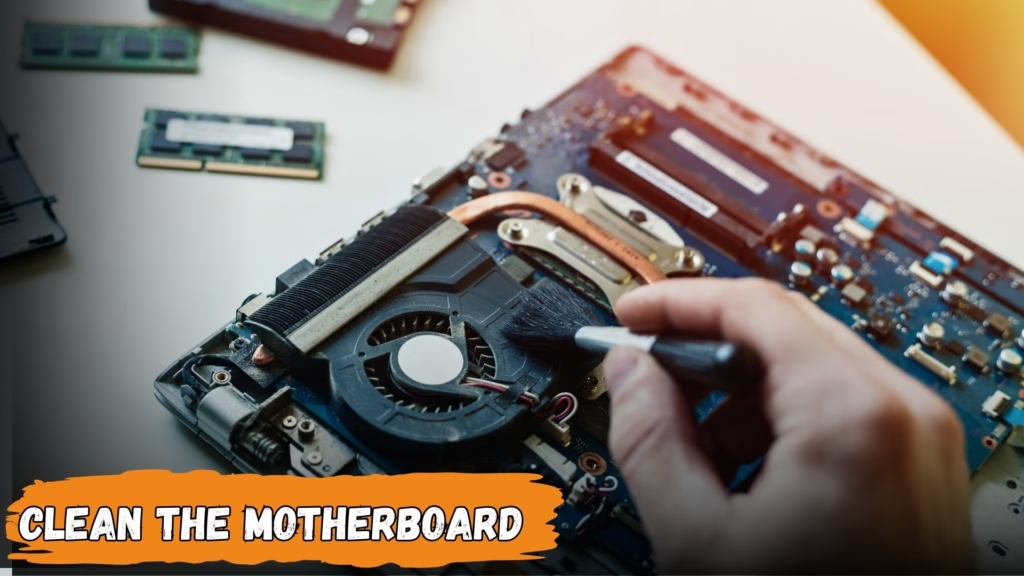
After removing the battery, fan, RAM, and hard drive, use a brush to clean the motherboard. Blow remaining dust with the air can. If dust is still stuck, use the vacuum. Then put everything back where it was.
5. Clean the TouchPad
For cleaning the touchPad of your laptop use a soft microfiber cloth to wipe the touchpad gently. If needed slightly dampen the cloth according to the manufacturer’s cleaning instructions. Do not pour water or cleaning liquid directly onto the toucpad.
Use Your Laptop in a Clean Place
Try to avoid using your laptop in dusty places. Dust goes inside the laptop and settles on parts, which makes it slow and reduces performance. Always use it in a clean area. Don’t open your laptop in dusty surroundings.
Best Way to Clean a Laptop by Software
Delete Unwanted Files
Turn on your laptop and delete all files and folders you don’t need. Useless data puts extra load on your system and slows it down.
Scan with Antivirus
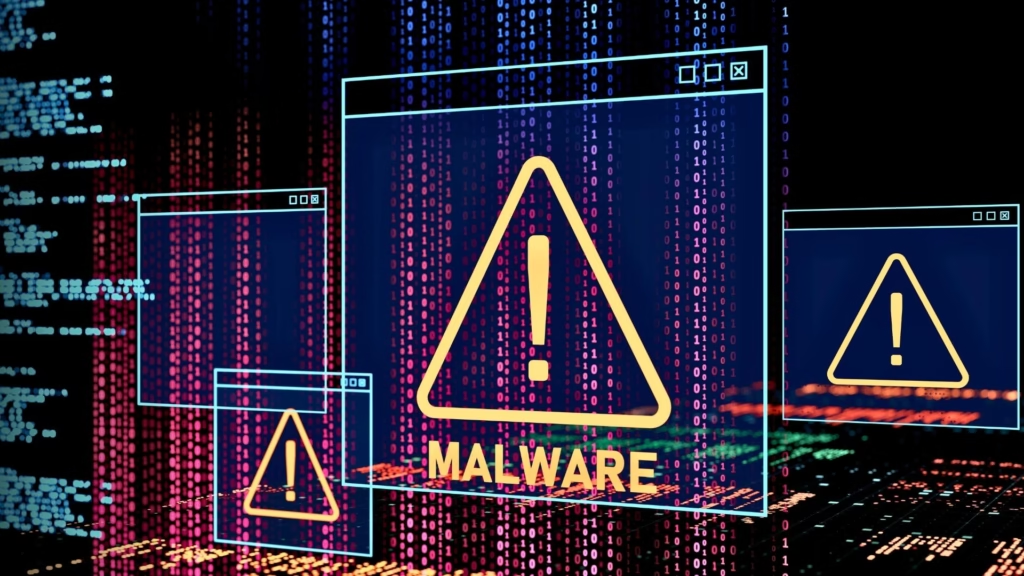
Use Windows antivirus or a trusted antivirus program to scan for malware if you suspect a security problem. Run a full scan. If there’s any virus or error, the scan will fix it. Because some time when we download any file that is not officialy like cracked softwares are dangerous for our system. So we need to install a powerfull anti-virus software.
Uninstall Extra Apps
For Uninstalling the application and apps from your laptop you need to go Control Panel and the click on the Uninstall a app. This method remove the apps from your laptop.
Delete Temporary Files
Press Windows Key + R, and type temp, and press Enter. A folder will open with temporary files. Select all and delete them. These files run in the background and slow down your laptop. And also delete the junk and waste files from your pc beacuse these files are cover the space in your disk with out any need.
Important Note
Never install apps from unknown publishers. These apps can ask for access to your system and may contain viruses. If you install something unsafe, it can damage your laptop or data.
Keep Your Windows Updated

Keep Windows updated to receive available security fixes and system improvements. Updates may help with software-related issues, but they do not replace physical cleaning whn dust blocks the cooling vents.
Conclusion : How to Clean a Laptop Fan
Learning how to clean a laptop fan can help you maintain proper airflow and reduce dust buildup around the cooling vents. Start by shutting down your laptop, disconnecting the charger, and cleaning the exernal vents carrefully. Internal cleaning may be necessary when dust is trapped inside the fan, but the correct method depends on your laptop model.
Keep you laptop on a clean, hard surface and avoid blocking its vents. If the laptop continues to overheat, makes unusual fan noises, or becomes unusually slow after cleaning the vents, consult the manufacturer’s support service or a qualifed technician.
Best way to clean a laptop and how to clean a laptop fan in 2026 is not a difficult job. It only requires a bit of care and basic understanding. If you clean your laptop regularly and use it in a clean place, you can’t face any issue. For healthy and smooth working of your laptop, you need to use your laptop in an airy environment.
FAQs: How to Clean a Laptop Fan in 2026
Q1: When should I clean my laptop for smooth working?
Clean the outside of your laptop and its vents whenever dust builds up. How often internal cleaning is needed depends on your enviroment, laptop design and usage. If the laptop overheat ot the fan becomes unusually noisy check the vents and consult a technician if necessory.
Q2: How do I clean the screen?
Turn off the laptop and disconnect the charger. Genlty wipe the screen with a clean soft microfiber cloth. If the screen need the further cleaning use only a solution approved by your laptop manufacturer. Never spray liquid directly onto the display.
Q3: How do I clean the keyboard and small gaps?
Use a soft brush or carefully directed compressed air to remove loose dustbetween the keys. Wipe the keys with a microfiber cloth that is only slightly damp.
Q4: When and how should I clean the inside?
Internal cleaning may be needed when dust builds up around the fan. And your laptop produce more heat and stuck during the work load and turn on slow and take much time.
Q5: Is it safe to use alcohol?
It depends on the laptop part and the manufacturer’s instructions. Some devices allow specific isopropyl alcohol solutions for certain surfaces, while some screens may be damaged by alcohol. Never apply alcohol directly to the laptop or allow liquid to enter its openings.
Q6: How to Clean a Laptop with water from outside?
A: Yes you can clean your laptop with water from outside but remember do not clean your LCD with water directly because it damages your laptop screen directly.

Sajjad Ahmad
Author & Technology Content Creator
Technology enthusiast with 5+ years of experience exploring gadgets and helping users understand everyday tech problems.
About GadgetsArina.com
A technology-focused website providing gadget information, product comparisons, and practical troubleshooting guides.
Content Areas
Smartphones · Laptops · Headphones · Smartwatches · Tech Guides