In this blog you will learn how to factory reset HP laptop. A factory reset on a HP laptop means restoring the computer back to its original state just like when you first used it. The reset process removes all your personal files, important data and installed apps. And then install a fresh copy of Windows. People usually perform a factory reset when their laptop becomes slow, gets infected with malware, or before selling it to someone else.
It’s import and to know what while reset clear software issues and give your system are clean start it does not fix hardware problems such as battery or hard drive fillers Windows activation remains in text after the reset but all your save data and programs will be gone so always backup your important files first for beginners think of it as giving your laptop and your life by wiping away everything inside and starting fresh.
Table of Contents
Why You May Need to Factory Reset HP laptop
- Slow and lagging performance.
- Malware and virus infections.
- Preparing the laptop for resale.
- Fixing software system errors.
- System hanging.
- Drivers not installed properly.
- Due to a corrupted Windows installation.
Things to do Before Resetting your HP laptop
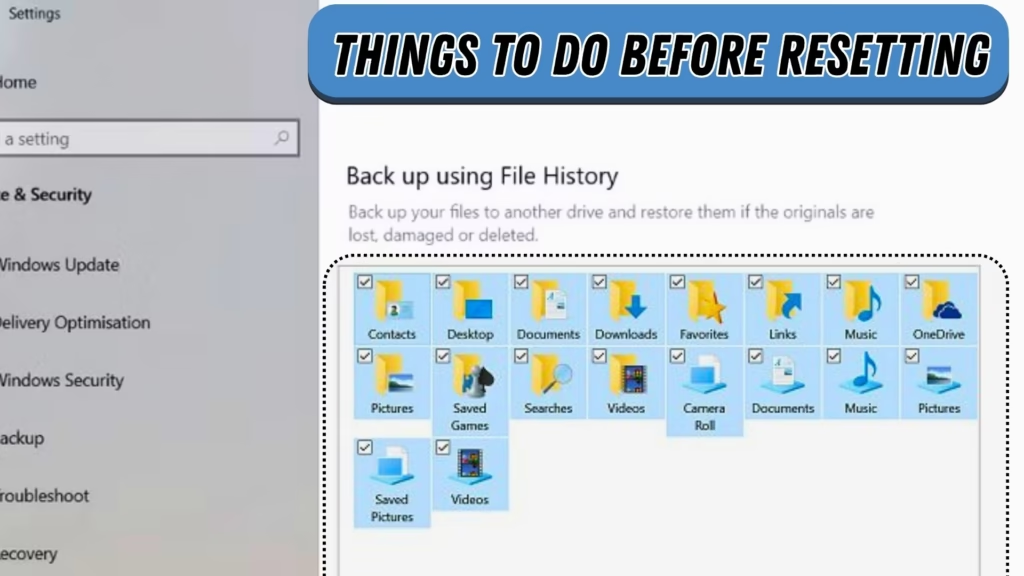
Always remember when you reset a HP laptop or any other company laptop because when you reset a laptop, all important files and data will be removed from the Local Disc C: and your data drives. So it is important to backup your important file before reset.
- Backup important files and data.
- Sign out from accounts and licence.
- Charge your laptop.
- Remove external devices to avoid interruptions.
- Connect the internet.
4 Easy Methods For How to Factory Reset HP Laptop
Here we discuss 4 easy methods for how to factory reset HP laptop. We will start from zero and breakdown one by one and reset your HP laptop do not skip any part and step follow the clear fully.
Method 1
How to Factory Reset HP Laptop from Windows Settings (Windows 10/11)
You can see that we are going to do a factory reset on a Windows 11 PC. If your PC is slow and not working like it did when you first installed it, then you may want to factory reset or do a fresh install. Many people do not know how to do a clean install, so this is the easiest way to factory reset your Windows 11 operating system. Let’s start.
Click the start button, select power, then click restart while holding the shift key. Since I am using a virtual machine, it looks a bit different, but on your PC or laptop it will be almost the same. You will see some options. Go to Troubleshoot and then select Reset this PC.
Here you will have two options:
- Keep my files → This removes apps and settings but keeps your personal files.
- Remove everything → This removes everything completely.
We are going to choose to remove everything.
In the next window, again you will see two choices:
- Cloud download → This will download a fresh ISO from Microsoft’s website. It says cloud download can use more than 4 GB of data, so make sure you have at least 10 GB free space on your hard drive or SSD.
- Local reinstall → This uses files already on your system to reinstall Windows.
Now, while preparing, if you want to keep your PC, you can choose Keep my files. There is also an option to fully clean the drive. If you are selling your PC or laptop, you can clean the drive completely. Here, we will just click Remove my files.
It will ask again if you are sure because this cannot be undone. Make sure your device is plugged in. This process can take some time. According to Microsoft’s website, it can take 2–3 hours.
My option is always to do a fresh install using a USB stick, but many people don’t know how to do that, so this is the simplest method. Click Reset this PC, then wait. Do not turn off your PC. Do not unplug the power. Windows will do everything by itself.
That’s it. After that, your Windows 11 will start with the setup screen. Choose your region, select keyboard input, and if you want to add another layout, you can. Then it will check for updates.
Accept the device name, click Next. Choose how you want to set this device (personal use). Click Next. If you don’t want to use a Microsoft account and want a local account instead, you need to disable your internet connection. For me, it is just one click because I am using a virtual machine. I will go to the device settings, disconnect the network, and then I can use a local account. For you, it may mean disconnecting Wi-Fi or unplugging the Ethernet cable.
After that, set it up for personal use, click Next. Enter a name for the device. If you want to set a password, add it; if not, skip it. Click Next. For privacy settings, I like to turn everything off and just click Accept.
That’s all. Windows will set things up. After a few minutes, you will have factory reset your Windows 11 PC.
Method 2
How to Factory Reset HP Laptop without Password via Recovery Options
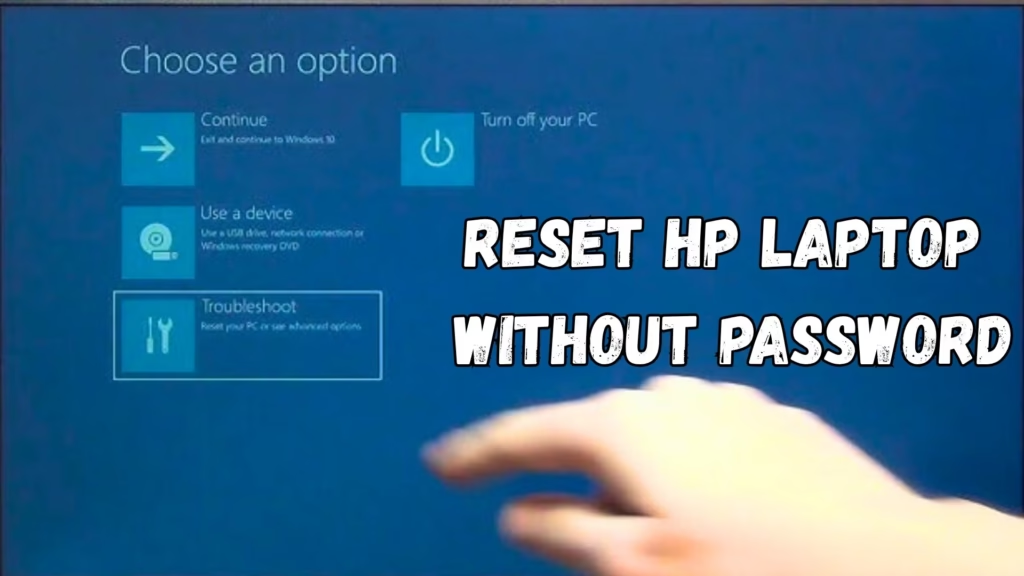
- Turn off your HP laptop
- Turn back on and press the right key
- Press F11 repeatedly. On some models you may need to press the Windows + F11 key. This will open the Windows Recovery Environment.
- Go to troubleshoot
- From this menu select reset this PC
- Choose how you want to reset
Keep my files– removes apps and settings but keeps your personal files
Remove everything– this method completely removes all your files including their personal data, photos, documents and videos.
- Follow the on screen instructions
- The reset process will take some time to make sure your laptop is plugged into power because when your laptop is in reset mode it can consume more power and take it sometime the battery cannot run a while big time for this process.
Finish setup
Once It restarts your HP laptop will be like new and you do not need the old password.
Method 3
Factory Reset with HP Recovery Manager F11 key
- Turn off your laptop
- Make sure your laptop is completely powered off.
- Turn on again by pressing the power button
- After turning it on again, press the f11 until the HP recovery manager or recovery environment screen appears.
- Select troubleshoot
- On the blue screen click troubleshoot recovery manager Choose system recovery/ reset this PC
Keep my files
Keep personal files but remove apps and settings
Remove everything
It removes all data from your device and your personal data like photo video and documents and this method cannot be undone.
Follow the on screen instructions
your laptop will restart several times during the reset.
Set up windows
After the reset, you will see the Windows setup screen, just like when the laptop was new.
Note:
On older HP laptops recovery manager looks slightly different but the steps are similar and always give your laptop plugged into power during the reset.
Method 4
Option 1:Clean install with the USB drive
- Prepare a USB drive
- In this method you will need at least 8 GB USB drive.
- On another computer download the window Media creation tool from Microsoft website and use it to create a bootable USB drive with windows for fresh and clean installation for a new window on your HP laptop.
- Insert the USB into your HP laptop
- Plug into the laptop you want to reinstall Windows on
- Inter boot menu
- Restart your HP laptop and press the ESC key repeatedly then press F9 for the boot devices option.
- Install Windows
- Choose your language time and keyboard setting and then click install now.
Select custom install Windows only
Advance for a clean install if you want a full wipe then select the empty space to install Windows.
- Finish setup
- Follow the carefully on screen steps to complete installation.
Option 2: Clean install with Cloud Download
- Open recovery options
- Go to settings and then system and then recovery
- Choose reset this PC
- Click reset this PC and then click remove everything for a fresh installation
- Select cloud download
- Instead of local reinstall choose cloud download.
- Windows will download the latest version directly from the Microsoft official website and make sure you have a stable internet connection and a space of 8GB minimum.
- Complete the process
- Your laptop will reset and install a fresh copy of Windows without needing a USB.
Tip: USB is better if you want full control like deleting partitions while cloud download is easier if you just want the latest windows version without extra steps.
Common problems during Factory Reset and (How to Fix Them)
- Factory reset stuck at a certain percentage.
Solution: Restart in recovery mode and try again.
- Recover partition missing.
Solution: Before reset check the partition name which one is used for windows installation and then try again.
- Laptop does not boot after reset
Solution: Boot from USB and check BIOS settings.
- Error messages can appear, but most can be fixed with simple troubleshooting steps.
- What to do after factory resetting your HP laptop.
Solution: Try the Window troubleshoot.
Complete the setup menu like user name, password, settings, Microsoft accounts and some more settings if you want to customize as per your need.
- Complete Windows setup like language Microsoft account and Wi-Fi and then reinstall drivers HP support assistant or Window update restore back up files and reinstall apps and do the all setting you need and keep your favourite apps.
Tips to keep your HP laptop Running Smoothly
- For running your laptop smoothly you need to follow these steps carefully
- Take regular backups.
- Keep Windows and drivers updated.
- Create recovery media for emergencies.
- Uninstall unused apps.
- Clean Storage.
- Avoid overheating.
Conclusion: How to Factory Reset HP Laptop
Resetting your HP laptop from Windows settings in Windows 10 or 11 is one of the easiest ways to fix slow performance or software issues. In this blog, we have explained its steps on how to factory reset HP laptop. You can choose to keep your personal files or remove everything for a fresh start. If you are selling your laptop it is better to fully clean the drive. The reset process may take some time so be sure your laptop is connected to power. Once it finishes you will get a fresh Windows set up just like a new computer.
Frequently Asked Questions
Q1: Will resetting my HP laptop delete all my files?
If you choose Keep my files, your personal files will stay, but apps and settings will be removed. If you choose Remove everything, all files, apps, and settings will be deleted.
Q2: How long does the reset process take?
The reset can take 2–3 hours, depending on your laptop’s speed and the option you choose (cloud download or local reinstall).
Q3: What is the difference between Cloud Download and Local Reinstall?
- Cloud Download → Downloads the latest Windows files from Microsoft (needs internet and about 4 GB+ data).
- Local Reinstall → Uses files already on your laptop, no internet required.
Q4: Do I need a Microsoft account to set up after reset?
No, you can use a local account if you don’t want to sign in with Microsoft. Just disconnect your Wi-Fi or Ethernet during setup.
Q5: Should I fully clean the drive?
If you are keeping the laptop for yourself, you can just remove files. If you are selling or giving it away, it is better to fully clean the drive for safety.