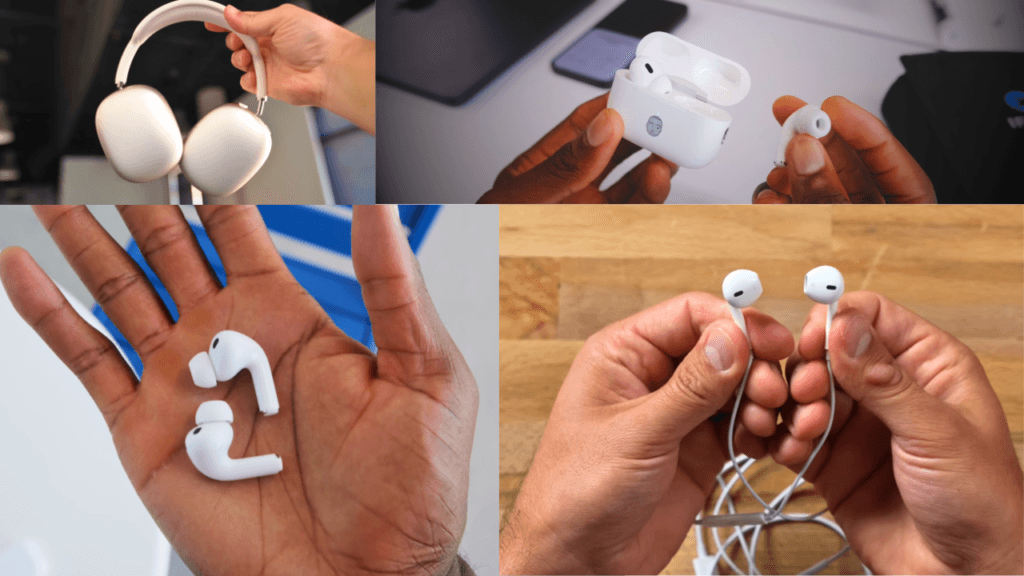
Apple Airpods are some of the most popular and high quality wireless Bluetooth earbuds you can buy today. Over excellent sound quality, quick connectivity and immersive battery life which is why so many people love using them. Airpods can sometimes create little issues. If they have the latest technology, and all the tech devices don’t always work perfectly.
The most common issues that many users face is when their AirPods do not connect to their devices like iPhone or any device. And that’s when knowing how to reset AirPods max becomes really helpful.And here we will guide you in simple steps to reset any AirPods model easily. Whether you have AirPods, AirPods Pro, or AirPods Max and any other model this guide will help you fix most common problems in just a few steps.
Table of Contents
Why you might Need to Reset Your Airpods
When a device does not work normally and shows problems like disconnecting, audio not syncing, or other issues, resetting can help fix them. Then we have an option to do this device for running smoothly so we need to reset our device like airpods or earbuds of any company. Below is a list of basic issues that a reset can fix properly.
- Connectivity problems: When your device is not connecting with your iPhone, android or any other device properly.
- Audio not syncing: When a device does not connect with your earbuds but does not send or receive the audio perfectly like audio not syncing properly.
- Charging issue: Sometimes Airpods are not charging correctly and after reset some models are charged correctly.
- Resale: Preparing airpods for resale or pairing with the new device.
Things to Check Before Resetting Airpods
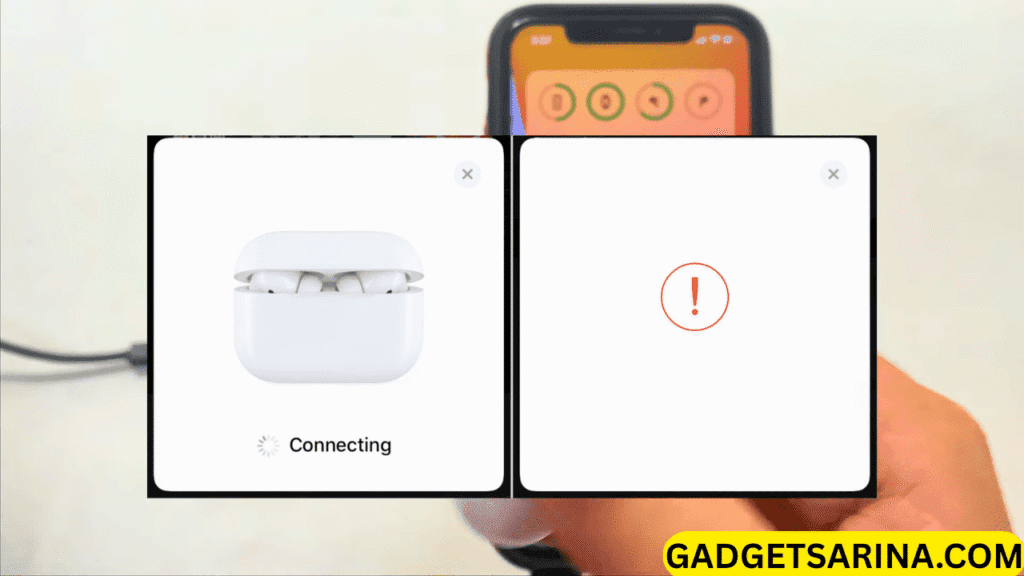
Make sure the AirPods have some charge
Before you start the reset, put your airports back in the case and let them charge for a few minutes. A low battery can sometimes cause connection or pairing issues.
Check that your iPhone or other device is updated
check that your iPhone iPad or other connected devices is running the latest version of software. Sometimes your old software can cause pairing and connection so first check your device for update and then try again.
Try Simple Fixes first like Turning Bluetooth on/off
Before doing a hard reset of your Airpods, try a small fix first at home, power off bluetooth, wait for your device to disconnect from your phone or laptop, and then turn it back on back. You can also unpaired and pair your airpods from Bluetooth settings. These small settings can solve your problem and better connect to your devices and your devices connected successfully without any issue.
Only proceed if issues are remain
If airports are still acting up after all the box steps, tennis time for a reason resetting should always be the last step because it clears all your saved connections and settings and makes your device like a new fresh one.
Step by Step Guide how to Reset Airpods all Models
| AirPods Model | When to Reset | Simple Steps to Reset | What You’ll See |
| AirPods (1st, 2nd, 3rd Gen) | If not connecting or audio not working | 1. Put in case → 2. Close lid 30 sec → 3. Hold back button till light flashes Amber then White → 4. Reconnect | Light turns Amber → White |
| AirPods Pro (1st & 2nd Gen) | If sound, mic, or noise canceling not working | 1. Put both buds in case → 2. Hold button 15 sec till white flash → 3. Reconnect from Bluetooth settings | White flashing light on case |
| AirPods Max | If not responding or pairing | 1. Hold noise control + digital crown for 20 sec → 2. Wait for Amber then White light → 3. Pair again | Amber → White light near charging port |
How to Reset Airpods (1st, 2nd and 3rd generation)
If your airpods are not connecting properly or make any problem like you cannot hear the sound then a quick reset will help you to solve the problems and how to reset airpods of older generations in a few easy steps.
- Put airpods in the charging case :Before starting the reset, put your airport in the charging case because this method ensures that your device is properly ready for the reset process.
- Close and reopen the lid: Close the lid for about 30 seconds, then open it again. This tap refreshes the connection and prepares your airports for the reset.
- Press and hold the button until the light flush is Amber then white: On the back of your charging case you will see a small setup button press and hold it for 30 seconds until the LED light first turns Amber and then switches to White this means your airpods have been successfully reset.
- Reconnect to your device: After the reset, keep the lid open, and close your airport to your phone or another device a pop up will appear on the screen asking you to reconnect just tap on the connect and follow the steps.
How to Reset Airpods Pro (1&2)
If you want to know how to reset airpods pro follow below steps carefully this method works for both first and second generation models resetting usually fixes the problems like sound issue connection disconnected again and again and nose cancellation mode is not working.
- Place both airpods pro in the case :Before resetting your AirPods, putting your AirPods into the case because you need to charge it before resetting it is a good tip to avoid any disturbing issue.
- Hold the button until the LED flashes: Find the small button back on the case of your earbuds case, then press and hold it for 15 seconds until the light is not turning on again. When you are case is flashing light in white colour that’s when your earbuds are successfully reset.
- Reconnect via Bluetooth settings: When the reset is complete open your lid of airbus and place it near to your iPhone or go to your bluetooth setting on Android tap on Airpods Pro from the list and you will be connected again and seconds.
How to Reset AirPods Max
The method of how to reset AirPods Max is little different from the other models. But this process is very simple. This process can help if your headphones are not connecting properly, sound not received or not responding as they should .If you have any problem in your airpods Max and you want to reset them. In this you will learn the easy to advance steps about your airpods Max and make them like new without any problem.
In below I tell some steps so follow the each and every step carefully
Before you begin
Charge your airports Max at least 50%.
Because if your battery is low your airpods Max not reset and may create problems during reset.
Locate the noise control and digital button
Every model of Airpods has a button, but some models have buttons on the back side and some other sides. So you can first find a button then the noise control button is used for switching between active noise cancellation and transparency mode while the digital crown is the round knob. You can adjust the volume and skip track to next and prev.
- Press & hold the button until the LED flashes are Amber and then white
- Press and hold the button together for about 20 seconds.
- First the LED lights near the charging port will flash Amber and then it will turn on in white colour that’s your sign that the reset is complete.
Pair again with your device or phone
After resetting your device, air pods and headphones connect again with your phone or other device using Bluetooth, open your bluetooth setting on your iPhone iPad or other device and select airpods Max to reconnect.
What Happens After you Reset your Airpods
When you reset your Airpods, your device starts fresh. It clears all the data and connections which can help small fixes bugs and pairing issues. It starts like a new model and new device that you will unpack from the box. It will help solve issues without going to a repair shop and any service center, because it is a good and easy way to fix a device.
- Airpods forgot all previous devices.
- Settings like custom gestures are erased.
- You will need to reconnect them to your iPhone ,iPad or Mac
Benefits: improved performance and a fresh connection.
Troubleshooting When Reset does not Work
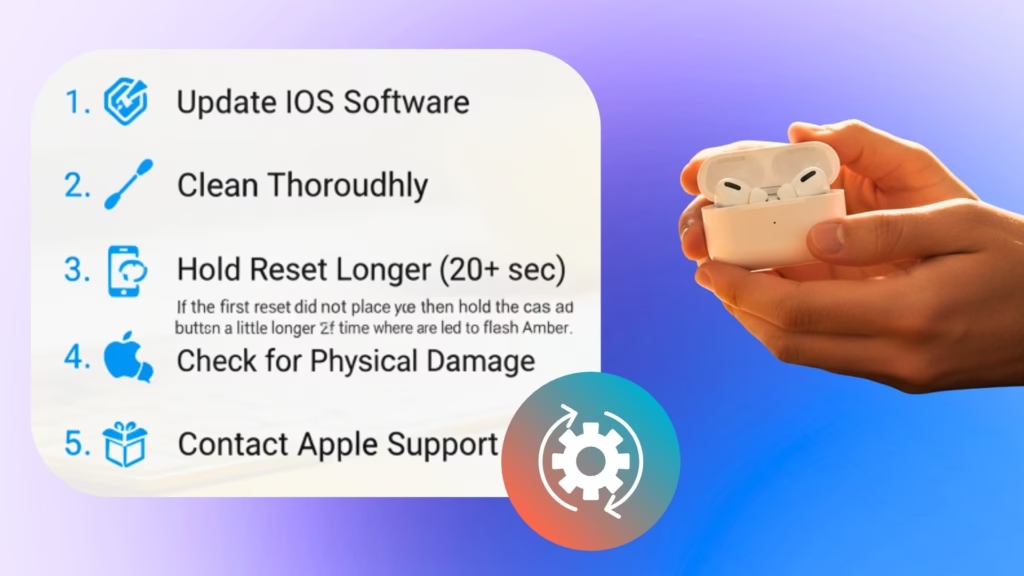
Sometimes even after you know how to reset Airpods the issues may remain, don’t worry this does not always mean something serious is wrong here show simple checks and fixes that can usually get things working again with a minor settings and checklist.
- Airpods still not connect check iOS software
- If your airpods do not connect properly or remain issues after reset then check your iPhone iPad or Mac is running on the latest software version outdated software can sometimes create problems like blocked connection.
- Clear Airpods sensors and charging
- Dirt or dust on the sensor or charging contacts can interfere with performance. Try resetting again.
- If the first reset did not place your air pods in the case and then hold the setup button a little longer about 22nd this time where are led to flash Amber.
- Contact apple support if the issue persists.
Tips to Avoid Resetting Airpods Frequently
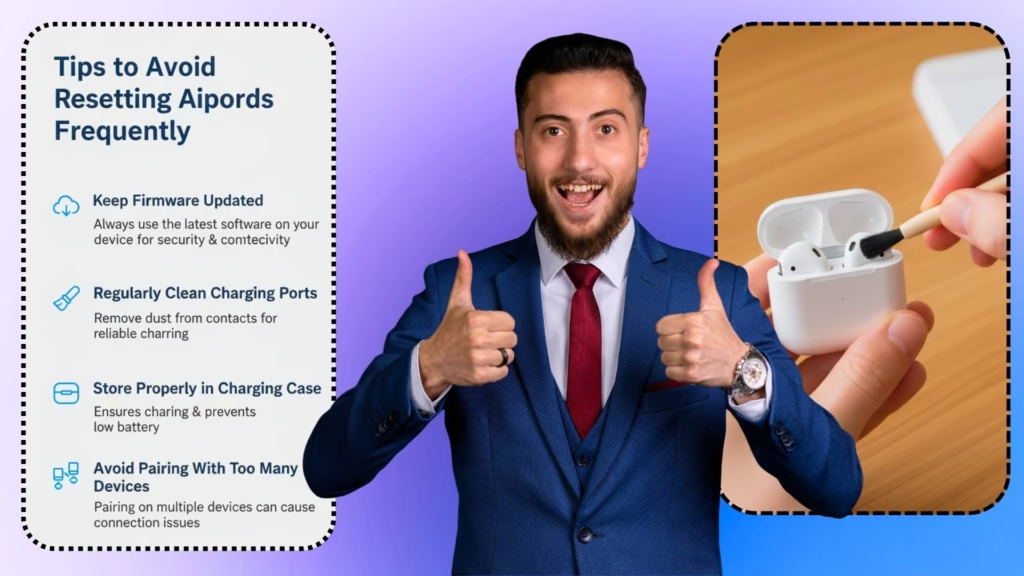
Before resetting your device it is important to check the following settings first. If you cannot check the below settings the reset will create some issues and your device cannot work properly again.
- Keep firmware updated :Check for updates on your device and always use the latest version of the software on your device. It is necessary and it saves you from hacking risk and other devices not connected.
- Regularly clean charging ports: After a long time using your device the charging ports are full with carbon and dust and your connection will charge your device is not complete because your pin and your charging Jack are full of dust and you face issues like your device not charging.
- Store properly in the charging case: After using your device it is important to put them back in your case properly, because if you cannot put your device into the case properly it may create charging issues and low battery issues.
- Avoid pairing your Airpods with too many devices at once :Do not pair your device at a time more than one because if you can per your device more than one and one time it cannot connect with anyone and make issues.
Conclusion
Knowing how to reset Airpods is one of the best simple tricks every user should know. And remember, you can save you all of time and frustration when your air birds suddenly stop sinking, not sending and receiving sound and refusing to connect.
This method is quick, safe and helps bring your airpods back to perfect working condition. The reset process is quick and completely safe without any reason. It can take your device back to perfect working condition like your use in the standard air pods Airpods Pro or Air Max reset can solve most everyday issues like disconnecting.
Faq’s
Q1. Why did I reset my airpods?
When your airpods are not connecting to your phone or any other device and create issues like not charging and sound syncing then you need to reset your airpods.
Q2. Can a reset delete all my settings of airpods?
Yes, when you reset your airpods all settings are deleted and even any device clears its all settings after reset.
Q3. How much time is required to reset airpods?
The resetting time for airpods is very short, usually it takes only one minute or less for completing the reset process.
Q4. If airpods do not connect after a full reset then?
If your airpods still do not connect to your phone or any other device after reset, so first you can check for the latest software update, if available then install it and try again the issue will be solved.

About the Author
Hello Dear Visitor, I’m SAJJAD AHMAD a tech enthusiast with over 5 years of experience reviewing gadgets and solving everyday tech problems. I write simple, honest, and easy-to-understand articles to help you choose the right devices without confusion. I compare products, break down features, and share practical solutions so you can make smart buying decisions with confidence.