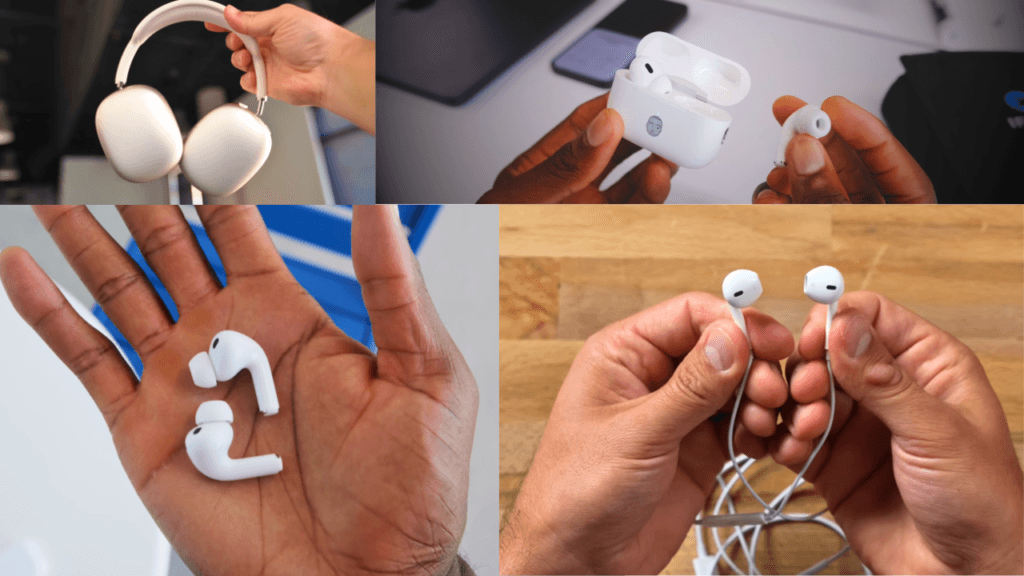
In today’s blog, we will learn from A to Z How to Pair a Beats Headphone With Any Device, whether it’s Android, iPhone, Apple TV, Windows, or any other. Here we explain easy methods for each device step-by-step for how to connect & pair beats headphones.
Before pairing your beats headphones
Before trying to connect your beats headphones a check these simple settings
- Make sure you are beats have enough battery.
- Keep the headphones close to the device you want to connect.
- Turn bluetooth on.
- Make sure your beats are in pairing mode.
- If you are beats are already connected to another device disconnect or unpaired them if necessary.
- Use the correct pairing button method for your specific beats model.
Table of Contents
How to Connect Beats Headphones to an iPhone
Connecting Beats headphones to an iPhone is simple. Before you start, make sure your Beats are turned on and close to your iPhone.
- Open Settings on your iPhone.
- Tap Bluetooth and turn Bluetooth on.
- Put your Beats headphones into pairing mode.
- When your Beats appear under Other Devices, tap their name.
- Wait a few seconds for the connection to complete.
Once connected, your Beats will appear in the Bluetooth settings and you can start listening to music, watching videos, or making calls.
How to Connect Beats Headphones to an Android Phone
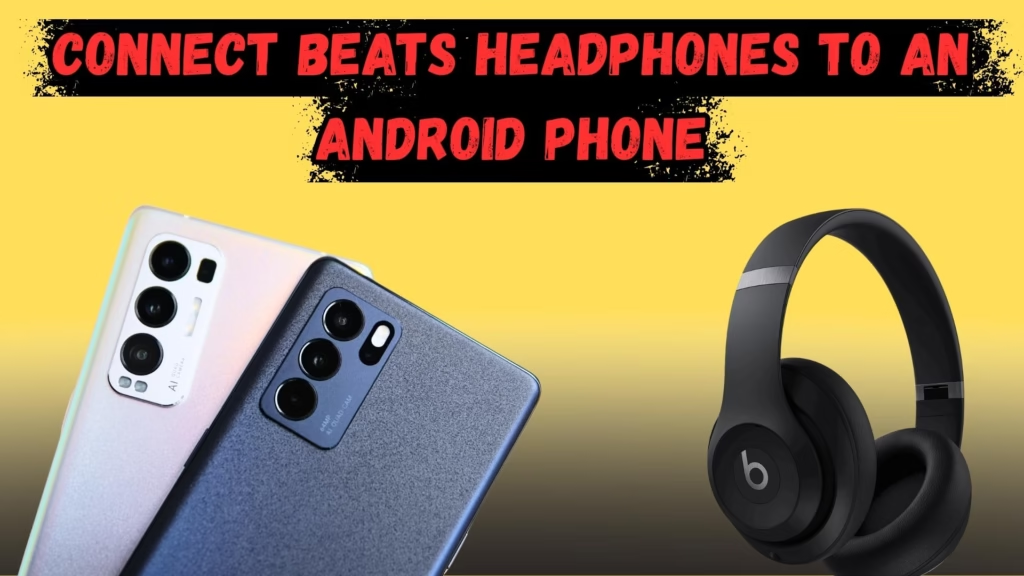
You can connect any model of Beats headphones to an Android phone very easily. After following the steps below your device will be connected without any problem.
Step 1
- Go to your phone settings.
- Turn on Bluetooth.
- Select the “Connections” option.
- After completing the process your phone starts searching for nearby devices.
Step 2
- Power on the headphones.
- After lights blinking your headphones are in pairing mode.
Step 3
- Go to Bluetooth and click on the “Scan” option so it can search for your device.
- When you see the name of your Beats headphones in the list, click on the pairing request and wait for a while.
- Your device will be connected.
- Troubleshooting–If Pairing Doesn’t Work.
If your headphones show up in the list but still don’t connect, or if you face any issue such as “connected, no sound” or no audio at all, simply reset your headphones. After resetting your headphones try again for pairing and connecting.
You can also use the beats app for Android to connect and manage compatible beats headphones. Open the app, put your beats in pairing mode, and follow the on screen instructions. If the headphones cannot be paired through the app, you can connect them through Android setting> bluetooth instead.
The beats app can also show battery information, manage supported settings, and check for firmware updates.
Connect the Beats Headphones to an Apple Watch
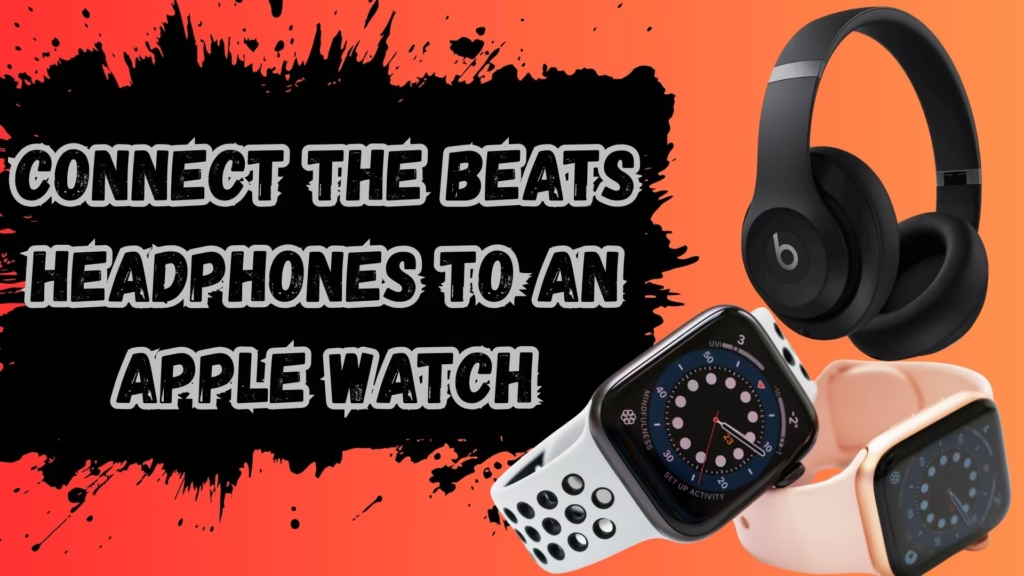
Now you will learn how we connect a Beats headphone with an Apple watch. This method takes only one minute so follow every step carefully. And do not skip any step.
Step 1:
- Turn on your beats headphones and put them into pairing mode.
Note: The button you use to enter pairing mode depends on your Beats model. On some models, you need to press and hold the power or system button until the light flashes.
Step 2:
- Turn On Bluetooth on Apple Watch
- On your Apple Watch, go to Settings.
- Scroll down and tap Bluetooth.
- Turn it on.
Step 3:
- Going into pairing mode.
- Long press the power button.
- When the lights are blinking it means headphones enable pairing mode.
Step 4:
- Connect from the Device List
- On your Apple Watch, open the list of Bluetooth devices.
- Find your Beats headphones in the list and tap on them.
- After a few seconds, your headphones will connect to the Apple Watch.
What to Do If It Doesn’t Connect the First Time
If your Apple Watch already has many devices connected and their history is showing in the list, sometimes new devices don’t attach properly. In this case, Forgot/Unpair your device.
- Open Settings again.
- Go to the Bluetooth list.
- Forgot/unpair the device.
- Then select your Beats headphones again and pair them.
How to Connect Beats Headphones to Apple TV
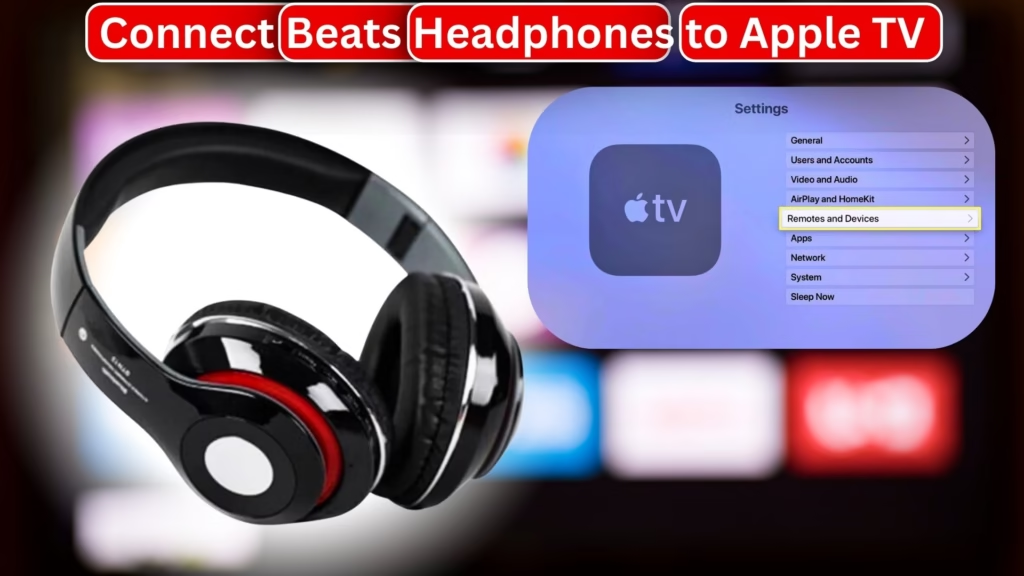
If you have Beats headphones, you can connect them to your Apple TV without any difficulty. With just a few steps given below and your Beats headphones will connect to Apple TV easily.
- First, go to the Settings on your Apple TV.
- Next, open the Bluetooth option. Inside it, you will find the menu for “Remotes and Devices.”
- Go to the Bluetooth list and refresh it. After refreshing, you will see the name of your Beats headphones.
- Tap on your Beats headphones from the list.
- After a few seconds, your Apple TV will connect to them automatically.
- Once connected, you will also get some control options.
– You can pause or stop a show directly and also increase and decrease volume through your
headphones.
How to Pair a Beats Headphone to a PC or Laptop
If you want to use your Beats headphones on your windows then you can come on the right blog. It is easy to connect your Beats headphones using Bluetooth of your PC and Laptop. You need to follow the below steps and after completing the steps your device connects successfully and you will enjoy the music.
If you have any Beats headphone model and find the solution for How to Pair a Beats Headphone With Any Device and laptop, this guide will help you to connect you headphones with any device like laptop or PC.
- Turn on your headphones.
- Hold the power button until they switch on.
- Enter pairing mode.
- Press and hold the button with the Beats logo.
- Keep holding until the Bluetooth light starts flashing — this means the headphones are ready to pair.
- Open Bluetooth on your PC.
- On your Windows laptop or computer, open Settings.
- Go to Bluetooth & other devices.
- Turn Bluetooth on.
- Pair your Beats.
- Click Add device and wait for the list to appear.
- Select your Beats headphones.
- The connection may take a few seconds.
- When it’s done, you’ll see a confirmation on the screen.
How to Pair a Beats Headphone to an iPad
If you have an iPad and you also have Beats headphones, then how can you connect them together? This is a very simple method which is explained step by step. You just need to follow each step.
Our expert chose the top categories for how to pair Beats headphones in 2026 with any device.
Step 1:Put Headphones in Pairing Mode
- On most Beats headphones, the power button has the logo.
- Press and hold this button for a few seconds.
- When the light starts blinking, the headphones are in pairing mode.
Step 2: Turn on Bluetooth on iPad
- Open Settings on your iPad.
- Tap Bluetooth and turn it on.
- You will see connected devices and available devices.
Step 3: Select Beats Headphones
- In the list, find your Beats headphones.
- Tap to connect.
- After a moment, they will pair and you will hear sound.
- Your Beats will also stay saved in the Bluetooth list.
Step 4: More Controls
- Once connected, you can use extra options.
- Turn noise cancellation on or off.
- Enable or disable transparency mode.
- Change button functions as you like.
How to Add Beats Headphones to Find My Device
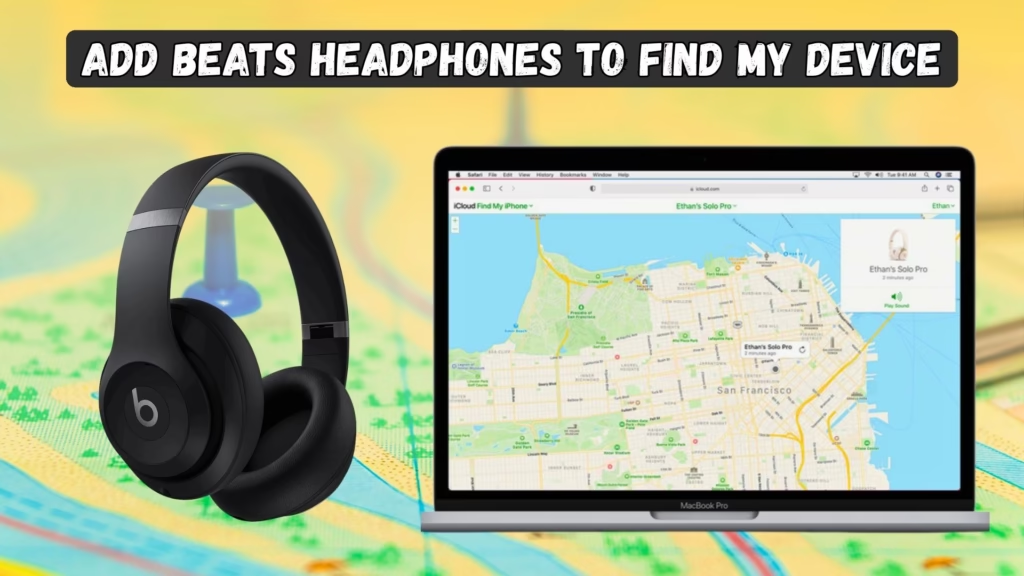
The Find My Device option is very useful because if your headphones ever get lost, you can easily find them. For this, go to your Settings, search for Find My Device, and then click on Add New Device. Add your headphones there. That’s it. Now, whenever your headphones are lost, you can simply track them through Find My Device.
How to find lost beats headphones
Supported beats devices can be located using apples find my on compatible Apple devices. First, pair your beats with an iPhone or iPad where you are signed in to your Apple account and make sure find my is enabled.
On iPad for iPhone open the find my app tap devices and select your beats to see their current or last known locations.
If you use Android you can use the beats app and its locate my beats feature to see the last location where your beats connected to your Android phone some supported beats can also work with Google’s find my device services.
Conclusion: How to Pair a Beats Headphone With Any Device
Pairing Beats headphones in 2026 is a very easy task that you can do without any problem. In this blog, we have covered all devices, where we explained How to Pair a Beats Headphone With Any Device with iPhone, Android, PC, Apple Watch, and Apple TV. We also shared how to reset them and gave some solutions for problems, so if any error comes in your device, you can fix it. After that, you can easily enjoy your music. We hope you liked this guide. If you want to ask more or face any issue, you can tell us in the comments and we will reply soon.
FAQs
Q1: How can you put your Beats headphones in pairing mode?
It is a very easy and short method to enable the headphones in pairing mode. you just need to power on headphones by pressing the power button.
Q2: Why are my Beats headphones not pairing?
If your headphones are not pairing or showing issues after pairing, check these settings:
- Check location
- Check sound settings
- Check volume, maybe it is off
- Forget the device and pair again
- Reset your Beats product and then pair again
Q3: Does Apple own Beats headphones?
Yes, Apple owns Beats headphones. It is an Apple product that includes headphones.
Q4: How can I update my Beats headphones?
Some new features are added in the latest models, like updates. They update automatically when your headphones are charging and connected with Bluetooth to your iPhone, iPad, or any Apple device. If the device is connected to Wi-Fi, the updates will install automatically.

About the Author
Hello Dear Visitor, I’m SAJJAD AHMAD a tech enthusiast with over 5 years of experience reviewing gadgets and solving everyday tech problems. I write simple, honest, and easy-to-understand articles to help you choose the right devices without confusion. I compare products, break down features, and share practical solutions so you can make smart buying decisions with confidence.