Is your Apple Watch not turn on, even after pressing the side button? This can be frustrating, especially when you need to check your notifications, track your activity, or use other features. In most cases, the problem may be related to a drained battery, a charging issue, or a temporary software problem. However, a damaged battery or display can also cause this issue.
Before taking your watch to a repair shop, try these six simple troubleshooting steps at home. They may help you find the problem and get your Apple Watch working again.
Table of Contents
1. Check the Power Source and Charging Adapter
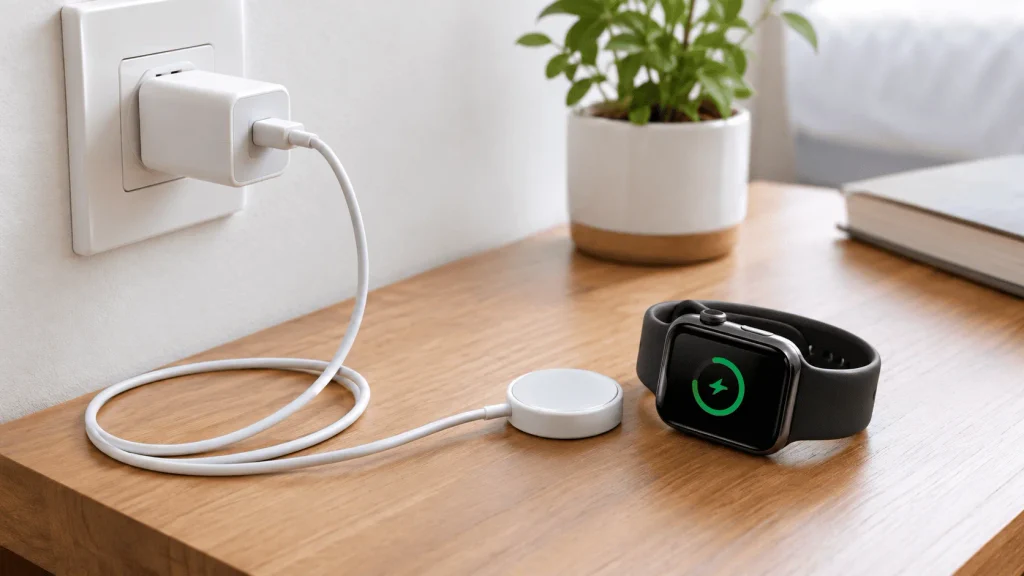
Sometimes, the problem is not with your Apple Watch but with the power source or charging adapter. A faulty wall outlet or damaged adapter may prevent your watch from receiving power.
Here are a few things you can try:
- Make sure the charging adapter is properly connected to the power outlet.
- Try another working wall outlet.
- Check the adapter for visible damage or loose connections.
- If possible, test your charging adapter with another compatible charging cable.
If the adapter is damaged, replace it with a reliable and compatible product.
2. Check and Clean the Magnetic Charging Cable
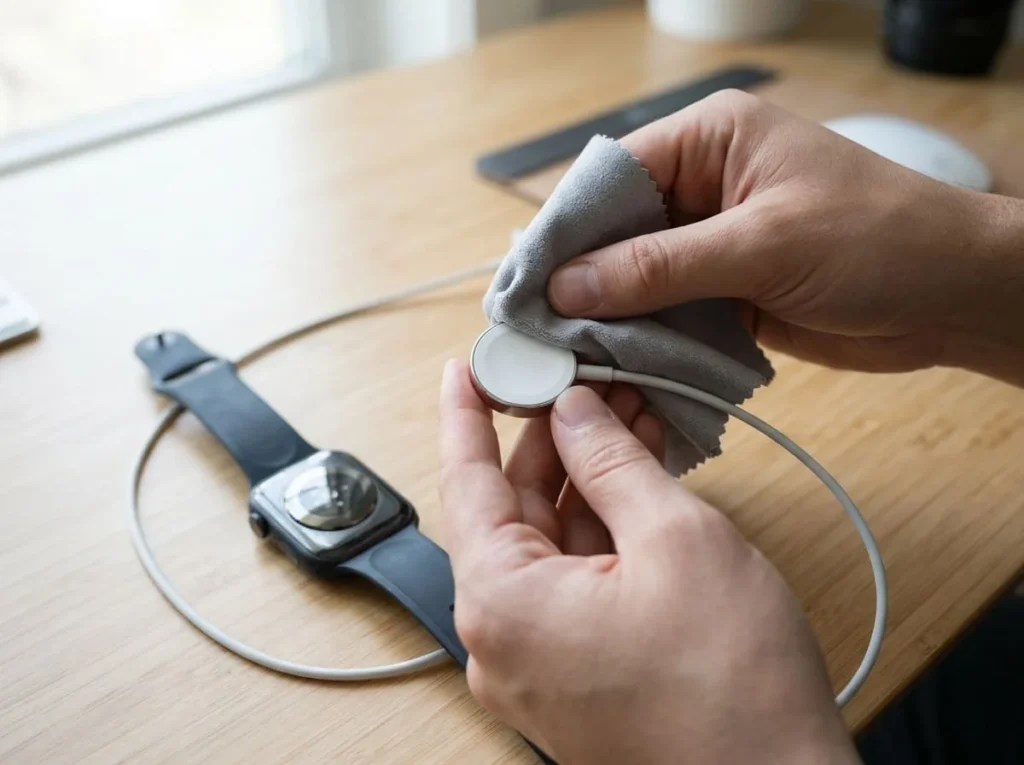
Apple Watch uses a magnetic charging cable to connect with its charger. If the charging surface is dirty or the magnets are not properly aligned, your watch may not charge correctly.
Follow these simple steps:
- Remove your Apple Watch from the charger.
- Check the back of your watch for dust or dirt.
- Clean the back of the watch and charging surface with a soft, dry, lint-free cloth.
- Place your watch back on the magnetic charger.
- Make sure the magnets are properly aligned.
When the charger connects correctly, a charging indicator should appear on the watch screen.
Important Note For Apple Watch Not Turn On: Remove any protective plastic covering from the charging surface before using a new charger.
3. Try Another Compatible Apple Watch Charger

A damaged charging cable can also prevent your Apple Watch from turning on. Even if the power adapter is working correctly, a faulty cable may stop the watch from receiving power.
To check whether the cable is causing the problem:
- Try another compatible Apple Watch Magnetic Charging Cable.
- If available, use a different compatible USB power adapter.
- Connect the charger to a working power outlet.
- Place your watch on the charger and check whether the charging symbol appears.
If your watch starts charging with another cable, your original charging cable may be faulty.
For better results, use an Apple charger or a compatible charger from a reliable manufacturer.
4. Leave Your Apple Watch on Charge for at Least 30 Minutes
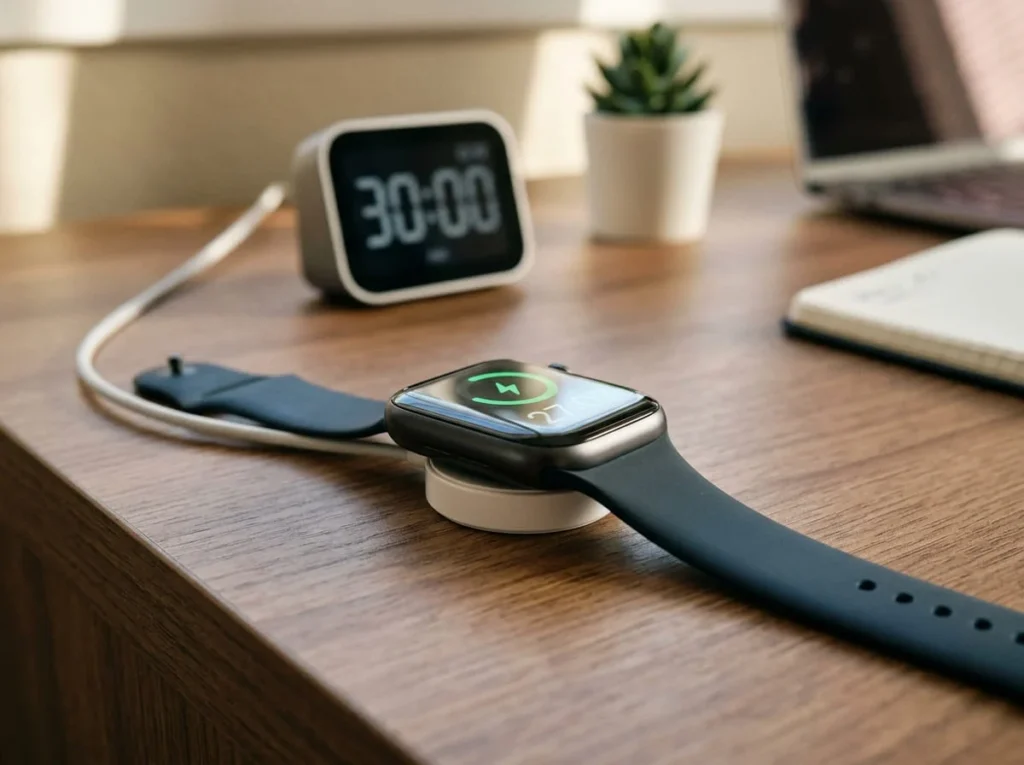
If your Apple Watch battery is completely drained, the screen may remain black even after you connect the charger.
In this situation, you may need to wait before the charging symbol appears.
Here is what you should do:
- Connect your Apple Watch to its magnetic charger.
- Make sure the charger is connected to a working power source.
- Check that the watch is properly aligned with the charging magnets.
- Leave it connected for at least 30 minutes.
- Check the screen again for the charging indicator or Apple logo.
According to Apple Support, a completely drained Apple Watch may need up to 30 minutes before the charging indicator appears.
If the watch still shows no sign of charging, move to the next step.
5. Force Restart Your Apple Watch
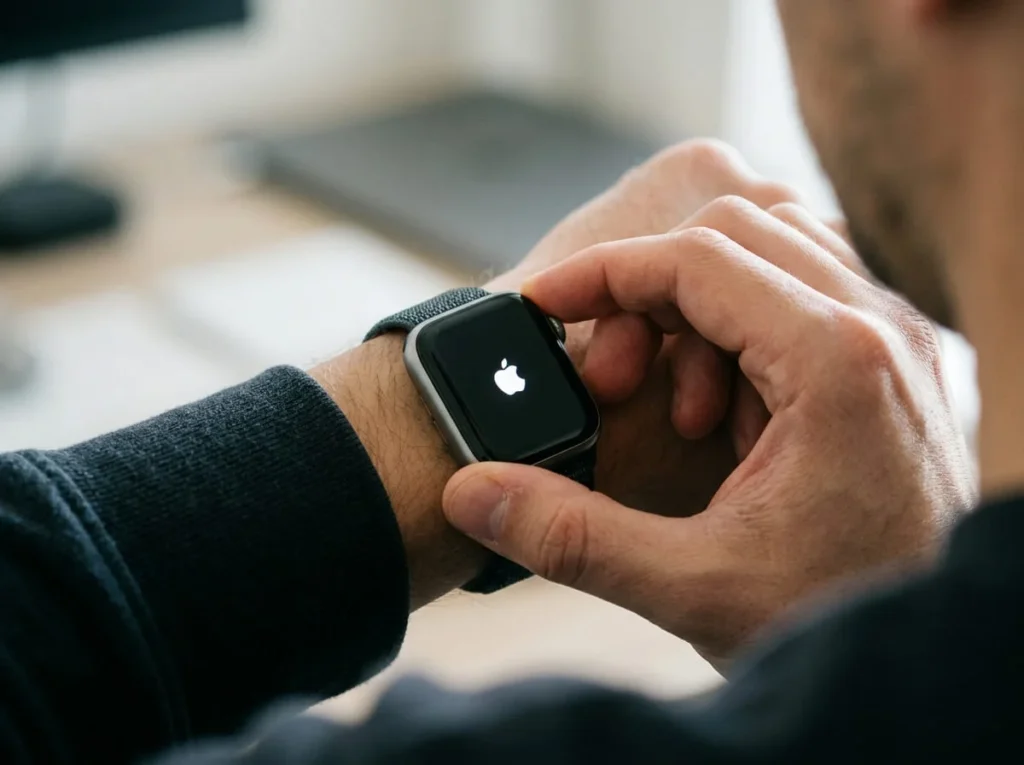
Sometimes, your Apple Watch may become unresponsive because of a temporary software problem. In this situation, a force restart may help.
Unlike a normal restart, a force restart can be useful when the screen is frozen or the watch is not responding.
Follow these instructions:
- Press and hold the Digital Crown.
- At the same time, press and hold the Side Button.
- Keep holding both buttons for at least 10 seconds.
- Release both buttons when the Apple logo appears.
- Wait for your Apple Watch to restart.
Important: Only use a force restart if your Apple Watch is not responding to a normal restart. Do not force restart it while a software update is in progress.
This method may fix temporary software problems, but it will not repair a damaged battery or screen.
6. Check Whether Your Apple Watch Has a Black Screen
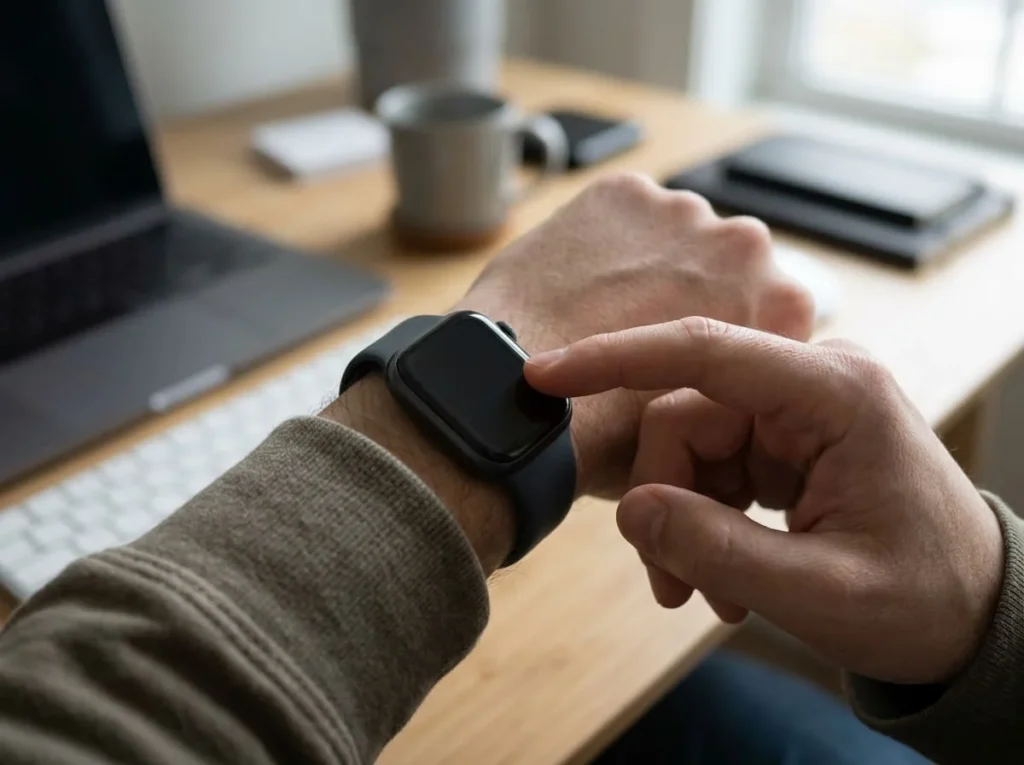
Sometimes, your Apple Watch may appear completely black even when the device itself is still working.
This can happen because of a temporary display problem, an unresponsive system, or a hardware issue.
Try these simple checks:
- Press the Side Button to see whether the watch responds.
- Tap the screen and raise your wrist to wake the display.
- Connect your watch to its charger and check for a charging indicator.
- Try the force restart method explained in Step 5 if the watch is unresponsive.
If your watch vibrates, makes sounds, or responds to buttons but the display remains black, the problem may be related to the screen.
In that case, avoid opening the watch yourself and contact Apple Support or an authorized service provider.
Still Not Working? Visit an Apple Authorized Service Provider
If all above methods do not work then your apple watch may have a big and more critical issue.
Possible causes include:
- A damaged or worn-out battery.
- A faulty charging component.
- Physical or water damage.
- A damaged display or internal hardware.
Here is what you should do:
- Contact Apple Support or visit an Apple Authorized Service Provider.
- Explain which troubleshooting steps you have already tried.
- Ask for a battery and hardware inspection.
- Check your warranty and service coverage before paying for a repair.
Note: Free repair or replacement is not guaranteed. It depends on your warranty status, the cause of the problem, and Apple’s service terms.
What to Do Before Repairing Your Apple Watch
Before taking your Apple Watch to a repair shop, check a few things that may help you identify the problem.
- Check the battery: Connect your watch to its magnetic charger and wait for up to 30 minutes.
- Check the charging symbol: A red lightning bolt means the battery does not have enough power to turn on.
- Check the buttons: Make sure the Side Button and Digital Crown are not stuck or physically damaged.
- Check for physical damage: Look for cracks, signs of impact, or other visible damage.
- Try a force restart: If your watch remains unresponsive, hold the Digital Crown and Side Button together for at least 10 seconds until the Apple logo appears.
If your watch still does not respond, contact Apple Support for further assistance.
Conclusion: Apple Watch Not Turn On
An Apple Watch that won’t turn on does not always mean that it is permanently damaged. Sometimes, the problem is simply a drained battery, a faulty charging cable, or a temporary software issue. Start by checking your power source and magnetic charger. Then leave your watch on charge for at least 30 minutes and try a force restart if necessary. If your Apple Watch still does not respond, contact Apple Support or an authorized service provider for further inspection.
These simple steps can help you identify common problems before spending money on a repair.
Frequently Asked Questions (FAQs)
1. Why My Apple Watch Not Turn On?
Your Apple Watch may not turn on because of a completely drained battery, a faulty charging cable, a damaged power adapter, or a software problem. Start by connecting it to a working magnetic charger and leave it charging for at least 30 minutes.
2. How do I force restart an Apple Watch with a black screen?
Press and hold the Digital Crown and Side Button together for at least 10 seconds. Release both buttons when the Apple logo appears. If the watch does not respond, check its charging connection and battery.
3. How long should I charge my Apple Watch if it won’t turn on?
If your Apple Watch battery is completely drained, leave it connected to its magnetic charger for at least 30 minutes. Apple explains that it can take up to 30 minutes for the charging indicator to appear.
4. Can a damaged battery stop an Apple Watch not turn on?
Yes. A worn-out or damaged battery can prevent an Apple Watch from turning on or charging properly. If different compatible chargers do not help, contact an authorized service provider for a battery inspection.
5. Can I fix an Apple Watch Not Turn On at home?
You can try checking the power source, cleaning the charging surface, testing another compatible charger, charging the watch for 30 minutes, and performing a force restart. However, hardware damage requires professional inspection.
6. How do I turn on an unresponsive Apple Watch?
To turn on an unresponsive Apple Watch, first connect it to its magnetic charger and check whether the battery is completely drained. If it has enough power but still does not respond, press and hold the Side Button and Digital Crown together for at least 10 seconds. Release both buttons when the Apple logo appears.
7. How long until a dead Apple Watch turns on?
A completely drained Apple Watch may need up to 30 minutes of charging before the charging indicator appears. Connect it to a compatible magnetic charger and make sure the charging magnets are properly aligned. If it still does not turn on after charging, check the cable, adapter, and power source.
8. Can a dead Apple Watch be fixed?
Yes, an Apple Watch that appears completely dead may sometimes be fixed by charging it, replacing a faulty charging cable, or performing a force restart. However, if the battery, display, or internal components are damaged, professional repair may be necessary.
9. Why is my Apple Watch showing a black screen?
An Apple Watch may show a black screen because of a completely drained battery, a charging problem, a temporary software issue, or display damage. Connect it to a compatible charger for up to 30 minutes. If it remains unresponsive, try a force restart. If the watch responds through sounds or vibrations but the display stays black, contact an authorized service provider.

Sajjad Ahmad
Author & Technology Content Creator
Technology enthusiast with 5+ years of experience exploring gadgets and helping users understand everyday tech problems.
About GadgetsArina.com
A technology-focused website providing gadget information, product comparisons, and practical troubleshooting guides.
Content Areas
Smartphones · Laptops · Headphones · Smartwatches · Tech Guides