How to logout from a Gmail account in 2026 from Android and iPhone is a common problem that many users face. They don’t know how to log out from Gmail on their iPhone or Android phones. In this blog, we’ve explained step-by-step and in simple ways how you can log out. You must follow each step properly so you can easily sign out from Gmail.
How to Logout from a Gmail Account in 2026 on Android
You need to click on the top right side. If you feel it’s difficult because you have too many Gmail accounts — !don’t worry here’s is the complete method.
- Open your Gmail app.
- When you open the Gmail app, click on the profile where your photo or account icon appears.
- When you click on it, you’ll see many email IDs.
- All the Gmail accounts on your phone will show up.
- The ones you want to remove will also be visible.
- On the top, you’ll see an option for Manage Google Account on this device — don’t click on it.
- Scroll down; you’ll see a Device option — click on it.
- All the accounts open on your phone will show up.
- Simply click on the one you want to remove.
- Then you’ll see the Remove Account option.
- Click on it, and your account will be removed from the screen.
That was the first easy way how to logout from a Gmail account in 2026 from your Android phone.
Table of Contents
How to Sign Out of Gmail Through Android Settings
This method is also very simple.
- First, open the Settings of your phone.
- Scroll down.
- At the bottom, you’ll find Accounts & Sync — click on it.
- You’ll see all the accounts there like Gmail, WhatsApp, Facebook, etc.
- Select the email ID you want to remove.
- Click on it.
- You’ll see two options:
- One on the top with two arrows for Sync
- One below with Remove Account
- Click on Remove Account
- Your phone will ask for the screen lock password
- Enter it and press OK
Your account will be removed. This is the easiest method, and it works on almost all devices.
How to logout from iPhone
If you want to log out your Gmail ID from your iPhone, here’s what to do. On iPhone, signing out of Gmail depends on how you’re using it. If you’re using the Mail app or the Gmail app, both have different ways to log out. But don’t worry, both are simple and won’t take more than a minute.
From Mail App
When your Gmail is connected to the default Mail app on iPhone, you can sign out by removing the account from the settings. It doesn’t take much time and ensures that your email stops syncing across your device.
- Go to iPhone Settings
- Scroll down
- Tap on Mail
- Tap on Accounts
- You’ll see the Gmail option
- Tap on it
- Your logged-in Gmail ID will be shown
- Tap on remove from this device
- Then tap remove from my iPhone
Your Gmail ID will be logged out from the Mail app.
From Gmail App
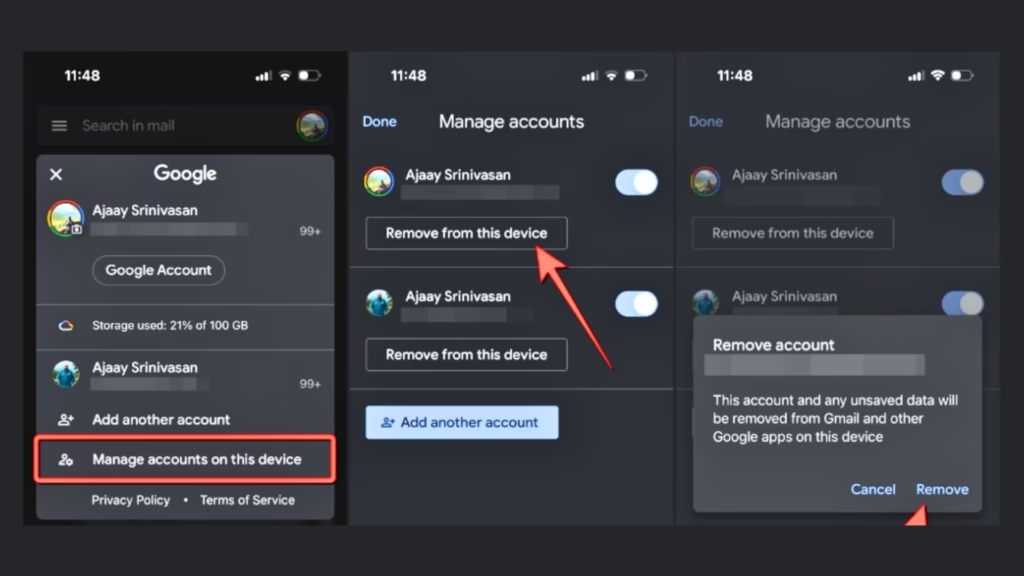
- Open the Gmail App
- You’ll see your profile icon on the top
- Tap on it
- All logged-in IDs will appear
- Tap on Manage Accounts on this Device
- Below each account, you’ll see Remove from this Device
- Tap Remove, and the Gmail ID will be removed from your iPhone
How to Delete Gmail Account from Any Device
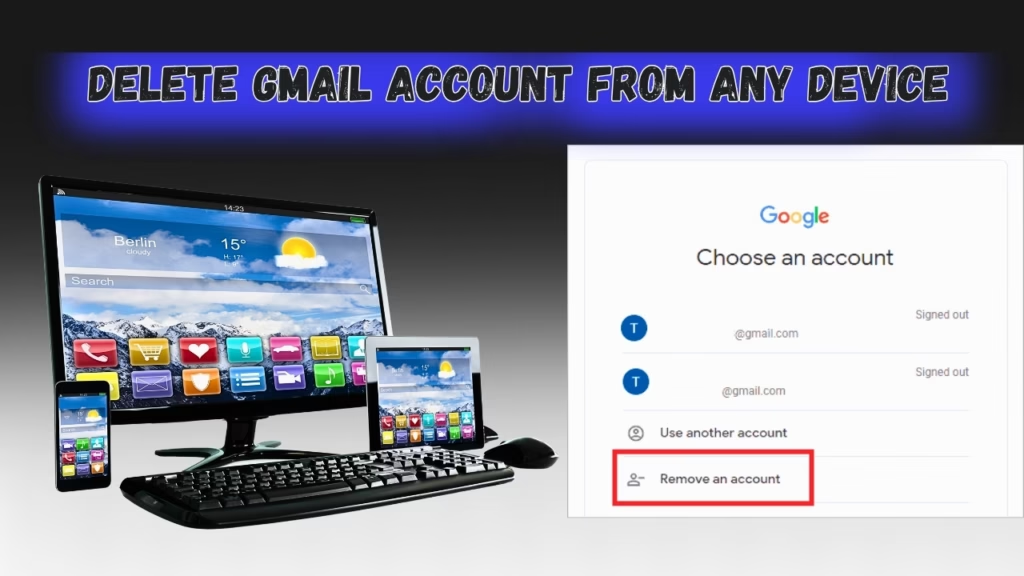
If you want to delete your Gmail account permanently, follow the steps below. Before starting, download any important emails, photos, contacts, and files you want to keep.
Steps to Delete Your Gmail Account Permanently
- Open your browser and visit Google Account.
- Sign in to the Google Account you want to delete.
- Open the Data & privacy section.
- Scroll down to Your data & privacy options.
- Select More options, then tap or click Delete your Google Account.
- Enter your password or complete any security verification if requested.
- Read the information about the data and services you will lose.
- Follow the on-screen instructions and confirm that you want to delete your account.
Your Google Account and its associated data will be deleted according to Google’s process. You may lose access to Gmail, Google Drive, Google Photos, and other services linked to that account.
Important Note
If you only want to remove your Gmail account from your phone, do not select Delete your Google Account. Instead, open your phone’s settings, go to Accounts or Passwords & accounts, select your Google Account, and tap Remove account. The account itself will not be permanently deleted.
Tip: If you want to delete only Gmail while keeping other Google services, use the Delete a Google service option in your Google Account settings instead.
How to Fix “Account in Use” Issue While Removing Gmail
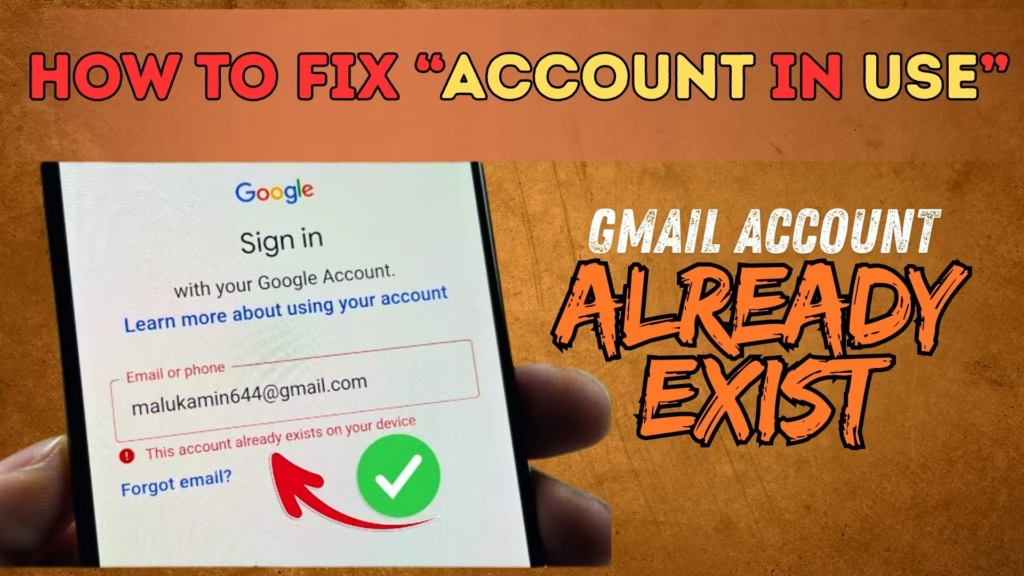
If you are trying how to logout from a Gmail account in 2026 on Android account from your phone or laptop and you are getting the “Account in Use” error, don’t worry. This is a very common issue and faced by many users, and it can be solved easily.
When This Error Happens
This error appears when your Gmail account is still signed in to any app or system such as:
- Gmail app
- Google Play Store
- YouTube
- Google Photos
- Cloud backup
Until you log out from these apps or services, this error will keep showing.
What Is the Solution?
Sign out from all Google applications
If your account is logged into any Google app, you need to log out from there first. Once all apps are sign out , try again and the issues should be resolved,
Turn off account sync
Go to your mobile settings. Scroll down and click on “Accounts”, then tap on “Users & Accounts”. You will see a “Sync” option in front of each Gmail account. Turn it off.
Device admin access
Sometimes the Gmail account is set as a device administrator. Go to security settings, check “Device Admin Apps”, and remove Gmail access from there.
Restart the phone
After completing the above steps, restart your phone so all settings update properly. Power off and then power it on again.
Remove the account
Now go back to settings, open the Accounts section, tap on the Gmail account you want to remove, and click “Remove Account”, then press OK.
Resolve If the Problem Still Does not Solve.
If the issue remains even after following all steps and the turn on Safe Mode on your mobile and try removing your Gmail account from there.
Risks of Not Logging Out from Gmail

If you are selling your phone or sharing it with someone for a few days and don’t log out of your Gmail account, you may face serious security risks.
Risk of Important data leakage
If anyone using your device like phone or pc can access your emails, contacts, and files. This data can be misused.
Passwords and bank information at risk
If your email is linked to bank accounts or other services, someone can easily access your financial data and cause loss.
Risk of account hacking
If your phone is given to someone and your Gmail is still signed in, they can access everything and even use your Gmail for illegal activities. Since Gmail holds your personal data, this can bring legal trouble for you.
The Best Solution
Always make sure to log out of your Gmail before giving your phone to anyone or selling it. Also, remotely log out from all devices. Your privacy and security are very important—handle it carefully.
How to Sign out of Gmail Remotely From Another Device
If you forgot to log out of your Gmail account on another phone or computer, you can sign out remotely using your Google Account settings. Follow these steps:
- Open a browser on your phone or computer.
- Visit Google Account and sign in.
- Open Security & sign-in.
- Find the Your devices section.
- Click Manage all devices.
- Select the phone, computer, or session from which you want to sign out.
- Review the device details and click Sign out.
- Confirm your choice if prompted.
If the same device appears multiple times, repeat these steps for each session you want to end.
What If You See an Unknown Device?
If you find a device you do not recognize, sign out of its sessions and secure your Google Account. Change your password if you suspect someone else has accessed your account, and review your account security settings.
Important: Remote sign-out removes your Google Account access from the selected device or session. It does not necessarily erase files or information already saved on that device.
Conclusion: How to Logout from a Gmail Account in 2026
Everything has been covered in this blog about how to logout from a Gmail account in 2026 on Android and iPhone. You’ve been shown different methods above. Use the one that feels easiest for you. In this blog, we’ve explained how to delete, remove, or sign out a Google account from any device — whether it’s iPhone, Android, desktop, or macOS. You can follow these methods and easily remove or delete your account.
If you liked this blog, please let us know in the comments. If you’re facing any issue, share it in the comments too, and we will write a specific blog on that topic to help you.
Important Note
Before signing out of your Gmail account, make sure to back up all important data such as contacts, photos, files, and app logins linked to that email ID.
- Once you sign out or remove your Gmail account from a device, some synced data may no longer be accessible.
- If you delete your Gmail or Google account, all connected services (Drive, Photos, YouTube, Play Store purchases, and subscriptions) will also be permanently removed.
- Deleted data cannot be recovered once the account is fully removed.
Always double-check your data and connected services before logging out or deleting your account.
FAQs
Q1: Can Gmail delete itself automatically?
Yes, Google accounts can delete themselves under certain conditions — for example, if your email is inactive for the last two years and there has been no activity.
Q2: Can I restore or recover my deleted Gmail account?
Yes, you can recover your Google account. But keep in mind, all the data (contacts, files in Drive, etc.) will already be deleted and cannot be recovered.
Q3: How can I remove my Gmail account from another device?
You can go to the Account Settings on the device where you’re logged in. Then check Connected Devices and log out from the one you want to remove.
Q4: What happens if I delete my Gmail account from my mobile?
Deleting your Gmail account from your phone won’t affect the device. But everything inside the Gmail account, including contacts, photos, and subscriptions, will be removed from all the places where the account was used.
Q5: Why can’t I remove my Gmail account?
There may be several reasons:
- Your account is still signed in to a Google app like Gmail or Play Store
- Device admin permission is enabled
- Data sync is turned on for that account
Turn off sync, remove device admin access, log out from apps, then try removing the account again.

Sajjad Ahmad
Author & Technology Content Creator
Technology enthusiast with 5+ years of experience exploring gadgets and helping users understand everyday tech problems.
About GadgetsArina.com
A technology-focused website providing gadget information, product comparisons, and practical troubleshooting guides.
Content Areas
Smartphones · Laptops · Headphones · Smartwatches · Tech Guides