In this blog we will give you Samsung Phone Layout Ideas that change your phone look and style as your needs and your phone look premium and stylish with our expert guide. We will guide you for every type of layout in Samsung phones and you can easily change the home screen layout and customize apps and their icons and many more.
Table of Contents
Why People Change the Look of Their Samsung Phone
Some people like to give their Samsung phone a new and premium look and they have tried many different methods,and this method makes their device different from others. By changing their home screen wallpapers, icons of apps, themes, or cases, anyone can adjust the phone according to their needs or match it with their lifestyle. In this pro guide, we will share some simple layout ideas that you can use to make your Samsung phone unique and customized to your style.
What Does Phone Layout Mean?
The meaning of the phone layout is simple. It means you can customize your home screen and theme of your phone, change the wallpaper and increase and decrease the widgets on your screen and customize their look and decide how the home screen of your phone is organized and displayed.
Why It Matters
The layout affects both function and style. It makes your Samsung phone easier to use, more organized, and unique in appearance. Customizing helps you use the phone comfortably and without difficulty.
What Is Included in a Phone Layout?
- Apps – The application icons that you can arrange or customize.
- Widgets – Small tools that provide information without opening an app, such as weather, date, or time.
- Icons – The symbols of your apps that let you recognize them quickly. They show the app’s identity in image form.
- Wallpaper – The background image on your home screen. Whether you are on the lock screen or using apps, the wallpaper is always visible behind them.
- Folders – A place where groups of apps are stored together in one section.
Why These Are Important
Icons, folders, and widgets make the phone easier to use. They help you understand an app’s purpose at a glance and find it quickly without wasting time.
Easy Samsung Phone Layout Ideas
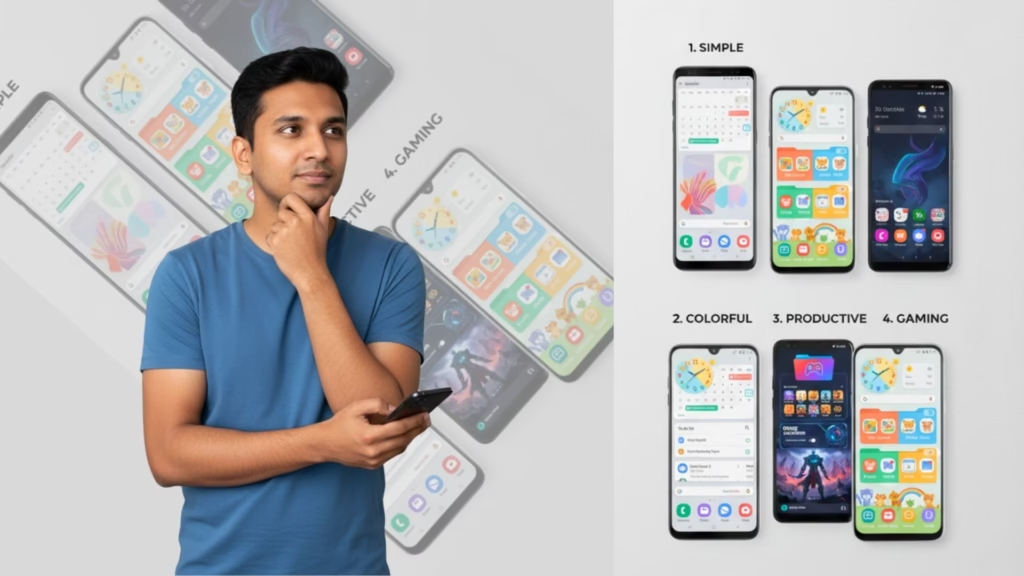
1. Simple and Clean Layout
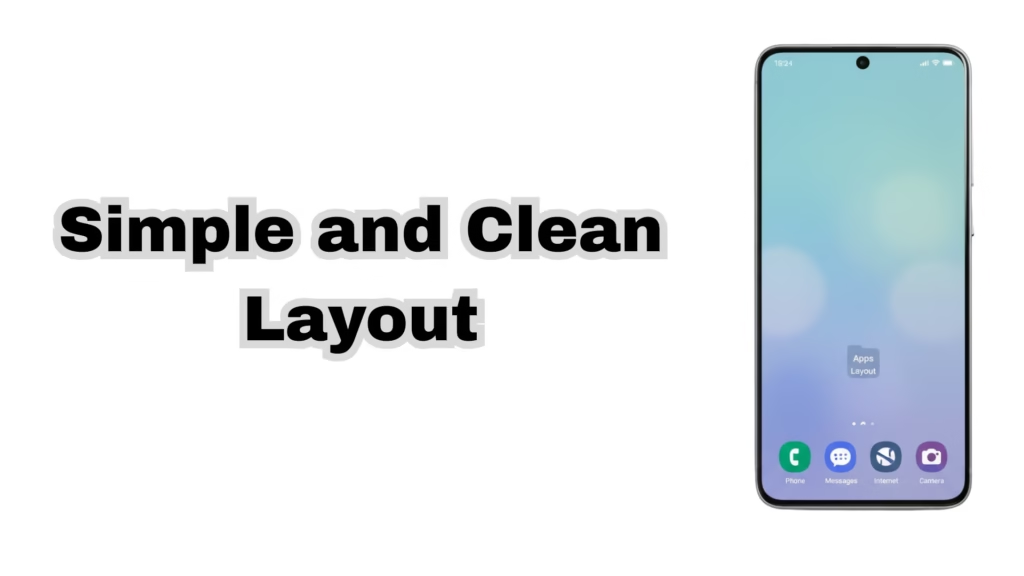
- Keep only the necessary apps on the home screen.
- Use a plain and simple wallpaper.
- Best for people who like a fresh and clear look.
2. Colorful and Fun Layout
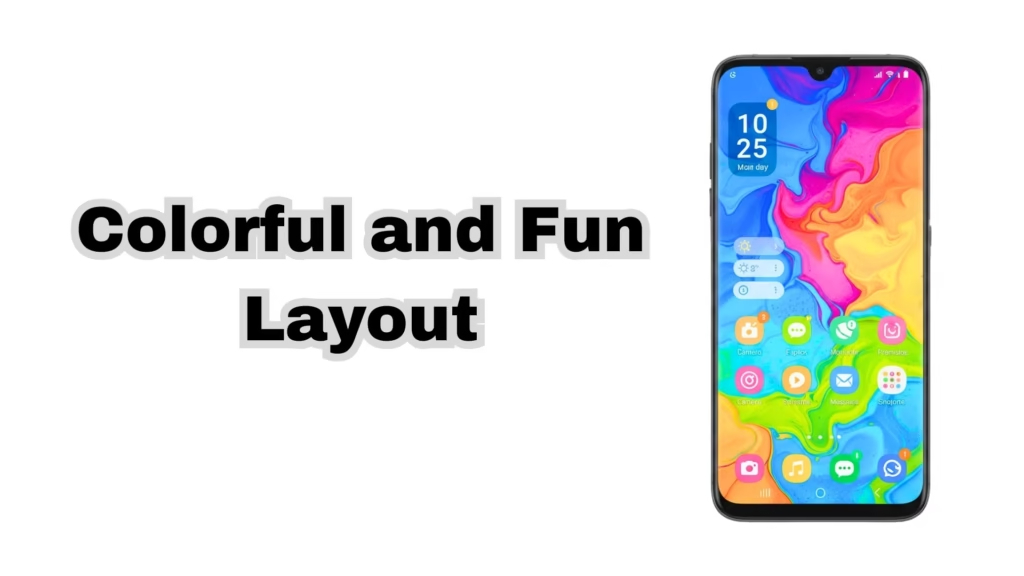
- Choose bright and attractive wallpapers.
- Use matching icons to create a theme and better style.
- Add widgets like a clock or weather display for a beautiful design.
- Great for people who want their phone to look creative and lively.
3. Productive Layout
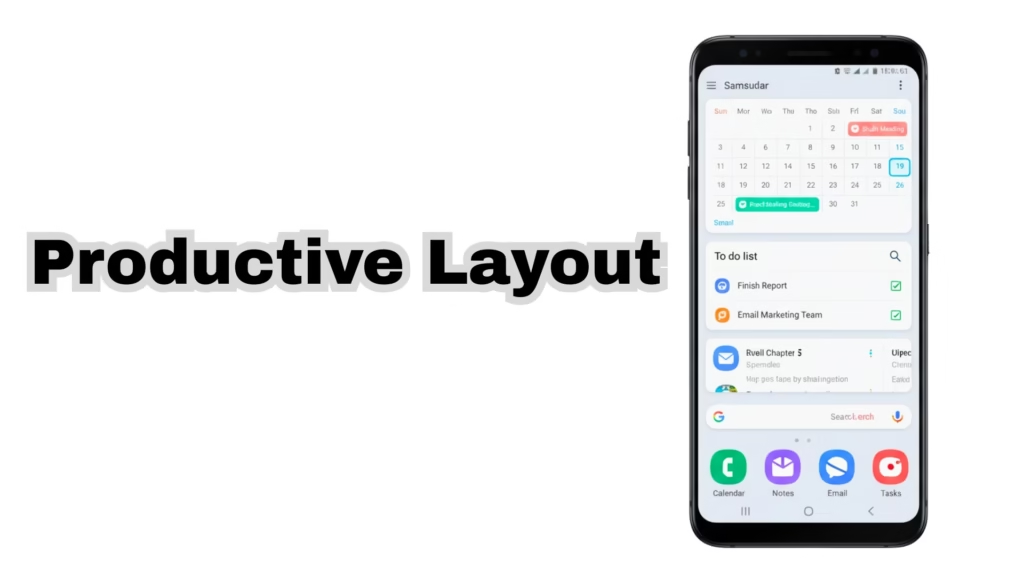
- Place apps like calendar, notes, and email on the main screen.
- Add a to-do list or task manager widget for quick access.
- Helps save time and stay organized while working or studying.
4. Gaming Layout
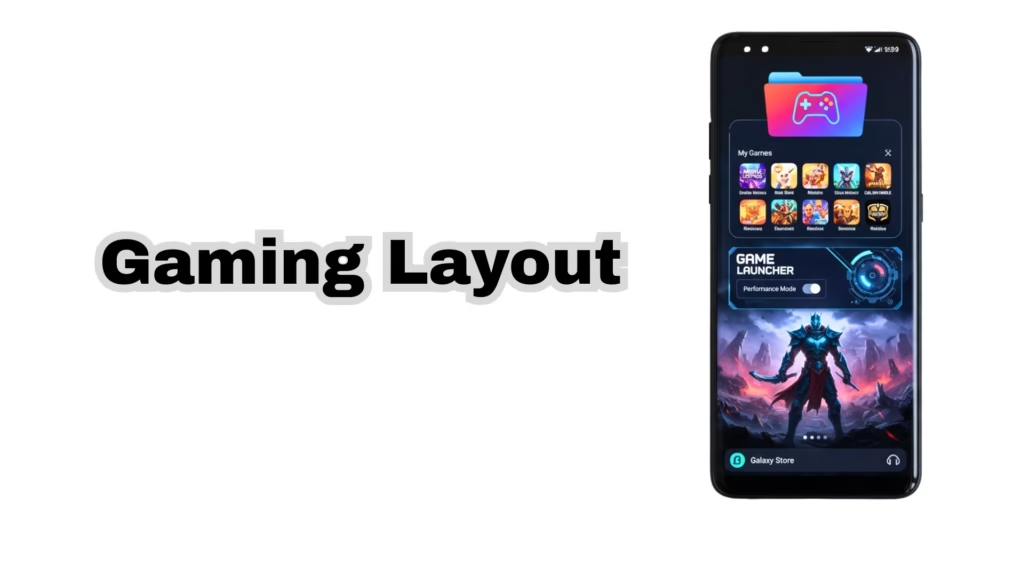
- Create a folder for all your favorite games.
- Use Samsung’s default Game Launcher.
- With Game Launcher, you can access your gaming apps faster.
5. Family and Kids-Friendly Layout
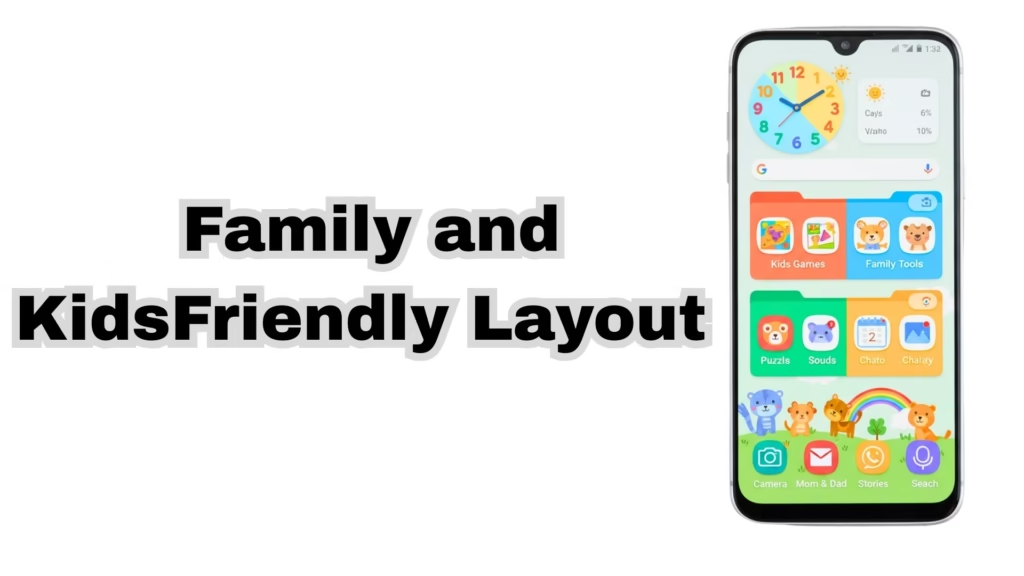
- Place kids’ apps and family tools together on the home screen.
- Use colorful icons and widgets to make the display more attractive.
Samsung Phone Layout Ideas Comparison Table
| Layout Type | Best For | Key Features |
| Simple & Clean | Minimalists | Only essential apps on screen, plain wallpaper, no clutter. |
| Colorful & Fun | Creative users | Bright wallpapers, matching icons, fun widgets like clock or weather. |
| Productive | Students & Workers | Calendar, notes, email on main screen, task manager widget for quick access. |
| Gaming | Gamers | Game folder, Samsung Game Launcher, faster access to gaming apps. |
| Family & Kids | Families & Children | Kids’ apps on home screen, colorful icons, easy-to-use layout. |
How to Change Your Samsung Phone Layout (step-by-step)
- Long press on the home screen tab setting or home screen settings.
- Adjust the grid size.
- Bigger widget pic more apps while smaller widget pic few apps.
- Place useful tools like the clock calendar or weather on your home screen
- Change wallpaper and themes.
- Open the Galaxy theme store to explore wallpapers, Icon packs and useful apps for more out options.
Samsung Good Lock Official Customization App
You can easily install and set new wallpapers and themes from Galaxy store directly
If you want to add more and more beautiful wallpapers and themes from third parties you can easily download the third party app and install it like zedge for free.
Extra Tips for a Better Layout
If you want to make your phone layout more beautiful and unique and feel premium, you can try these simple tips.
- Try dark mode– Gives your phone sleep look and is easier on the eyes at night and saves your battery .
- Use a folder– Group similar apps together to keep your screen neat and clean and you can easily find your favourite app using the folder.
- Separate screens– Dedicate one screen for work apps and second for personal use.
- LockStar – Lets you fully change the look of your lock screen. You can move the clock, add widgets, and choose different unlock styles.
- Home Up – Helps you redesign your app drawer and folders. You can make folders look stylish and change how apps are arranged.
- Theme Park – Allows you to create your own custom themes using your favorite colors and wallpapers.
- Task Changer – Lets you change how recently used apps appear when you open the multitasking menu.
- Edge Panels – quick shortcuts
- Always On Display customization
- One Handed Mode –for easy use
These features give you more control over your Samsung phone and make it look exactly how you want.
Can We Change Layout on Every Samsung Phone
Yes absolutely you can change or customise themes and wallpaper on any Samsung phone and customise them for your Needs. It is important to customize your home screen for your use because after customizing your home screen you can easily use your phone and find your favourite apps fast.
Why you Need to Change your Home Screen Layout
Because when you use your home screen and many apps on your home screen artist and you cannot find your favourite app song so that you can customize your home screen as you like and then you will find your any favourite app fast.
It is Safe to Change and Install Theme
Yes it is completely safe to change and install a new game in your Samsung mobile phone from their official store. Because it is protected by the security and not any virus included in any theme.
Conclusion: Samsung Phone Layout Ideas
In the above blog we explain every type of guide that helps every user for Samsung Phone Layout Ideas. If you want to make your phone unique and prem and customize it as you like, do not be afraid of any game installed in your device and change after time and time at least when you cannot find your best thing to introduce yourself and like it for you. It is safe to change or customize themes near Samsung phones because no important data will be removed and it is 100% safe from any malware or virus.
FAQ’S
Q1. Can we change the theme of any Samsung phone?
yes you will change the theme and layout of any samsung phone and customize it as per you needs and as you want.
Q2. Can we download and install a third party app for layouts and themes?
Yes you can download and install third party apps on your phone to change the theme and layout of your Samsung phone.
Q3. Is it safe to change the theme of any phone?
Yes it is safe to change the theme of any phone and no problem occurs doing this.
Q4. Can we purchase any theme from Samsung’s official site?
It is possible to pay for a paid theme on a Samsung phone to change the home screen layout.